Are you playing Armored Core 6 and wondering how to save the game or how loadouts work? Worry not you aren’t alone. Since this is a FromSoftware game, the last thing one would want is to lose their progress. While these games can be extremely fun to play. Anyone would rightly lose their mind if the game didn’t save properly and you have to start all over again. Also, if you have been messing around in Garage, you must have come across loadout presets. So here is how the game’s save system & checkpoints work in AC6 and how you can use loadouts.
How to Save Game in Armored Core 6
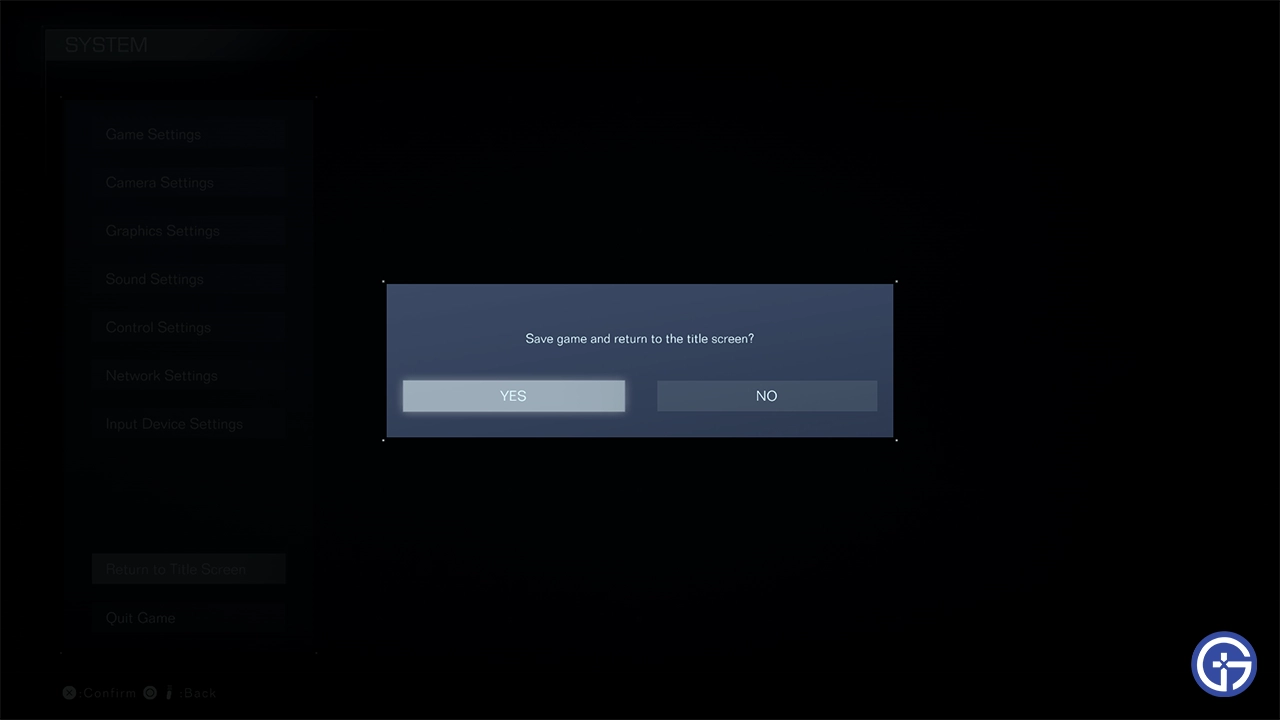
Armored Core 6 uses auto-save throughout your missions and chapters. As such you don’t have to worry much about losing progress. However, if you do want to manually save, then you do it by choosing the “Return to the title screen” or “Quit game” options. The game will now give you a popup to confirm whether you wish to save the game. Choose Yes and it will.
If you have been playing other titles from the developer like Elden Ring, Sekiro, or Dark Souls. You must be used to saving anywhere (as long as not while not being attacked). AC6 works a bit differently when it comes to handling your progress.
Here the game auto-saves and creates checkpoints based on how much you have progressed in the mission. Since it isn’t exactly a Souls game, it is pretty forgiving. So not only do you restart from your checkpoint at full health. It also restores your ammo, expansions, and repair kits completely. As such you don’t have to worry about resuming from a checkpoint with low HP or if you lack the proper amount of ammo for your weapons.
How to Use Checkpoints
You can use checkpoints when you die. The game gives you these options:
- Restart from Checkpoint: This lets you continue the mission from your current checkpoint but with full HP, & ammo.
- Restart Mission: Through this, you can play the mission right from the start.
- Assembly: This lets you change the parts of your AC unit before you can restart from a checkpoint or a mission.
Aside from that, you don’t have much control over when checkpoints are created.
Also Read | All Missions List For AC6
How to Save Loadouts in Armored Core 6
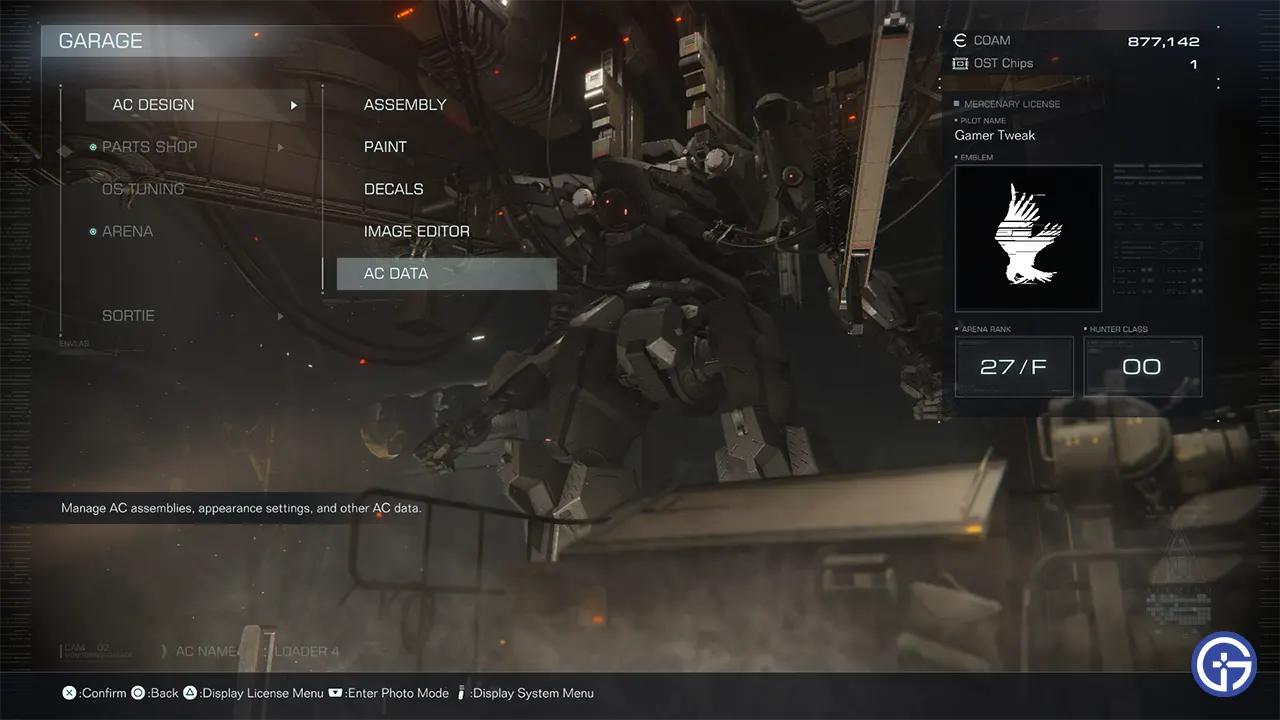
While playing AC6, you can save multiple loadouts of your mechas. These are useful to quickly load them instead of manually picking weapons, or other parts each time. Here is how it works:
- Go to Garage and select AC Design.
- Now, choose AC Data.
- Here, you will get 4 User tabs with 40 save slots in each. This means you get 160 slots for your loadout presets in total!
- Alongside, you also get a preset tab that lets you load mechas you fought in the Arena.
- Select the User Profile that you want to Save your Loadout in.
- Click on the “+” button to save a new loadout.
- Now enter a name for your loadout and click Confirm.
- Alternatively, you can also overwrite by saving over an existing loadout.
Clicking on a Loadout gives you the following options:
- Save
- Load
- Delete
- Change Data Name
- Change AC Name
- Change Save Location
- Upload
That covers everything about saving the game & using checkpoints in Armored Core 6 to how loadouts work. Be sure to also check out our guides on how to find all secret parts for your AC unit in this game. You can also check out our Armored Core 6 section to get help on other topics like how to input share ID codes, change pilot name, and more.