Being a pilot is no easy feat and Microsoft Flight Simulator will bring the challenge on your fingertips. With this game, you can take off and explore the beautiful world we live in and yes, that includes various weather conditions. Are you curious to know how to change the weather in Microsoft Flight Simulator 2020? Find out here.
Microsoft Flight Simulator Weather Settings: How to Change
In real life, a sunny and clear weather is required for a safe flight but if you want to change the weather, you can do so in this game. To tweak weather settings manually, you have to visit the Weather tab in the menu (it will be on the top). Manually choose if you want presets like few clouds, scattered clouds, broken clouds, overcast, rain, snow etc.
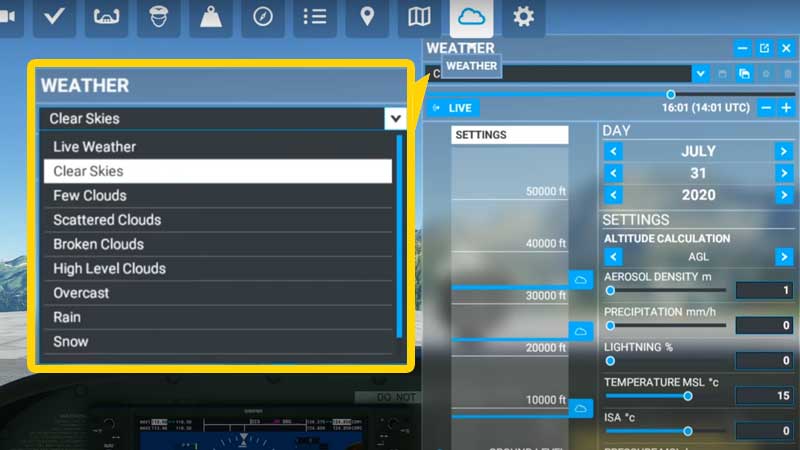
Moreover, you can manipulate a lot of settings right here as per your wish and requirement. You can change the temperature, time, precipitation, day, time and much more. Want to make things extra terrifying? Go ahead and add extreme winds and lightning to the mix. Remember that MFS has made the weather settings very realistic so be prepared.
Speaking of realism, you can get the actual Live Weather of the area you are flying in too. Depending on your location, you will get the local weather conditions that the game will take from online information. Hence if all your other settings are highly realistic, we suggest you keep Live Weather on as well for the complete experience.
Note that the best time to change weather is before a flight. You can do it by clicking on the Flight Conditions option on the top right area of the World Map screen.
That’s everything you need to know about changing weather in Microsoft Flight Simulator 2020. Challenge yourself by selecting harsh weather conditions or endure realistic weather based on the location. Either way, it will be one amazing ride.
Stick around to read more helpful tips and tricks for this game. We have covered solutions to the stuck on loading screen issue, crash to desktop issue as well as guides on how to take off, where’s the Num Del key and how to activate autopilot.