Xbox Party Chat disconnected? This may happen often and can be frustrating. Imagine you are excited to play a multiplayer game and talk to your friend. You load up everything, but all you see is that your Xbox party chat is down or not working and you are spending your time looking for a fix. This can be quite a problem if your friends are waiting on you.
To help you out, we have put together a step-by-step you can use to fix Xbox chat and join the game right away.
How to Fix Xbox Party Chat Not Working or Connecting Issue?
Here are the solutions to fix the issues if Xbox party chat is not working:
- Check if Xbox Live Party Chat is Down
- Check Your Privacy Settings
- Unmute or Unblock the Person
- Check the Party Chat Volume
- Verify if Issue is Related to NAT Settings
Check if Xbox Live Party Chat is Down
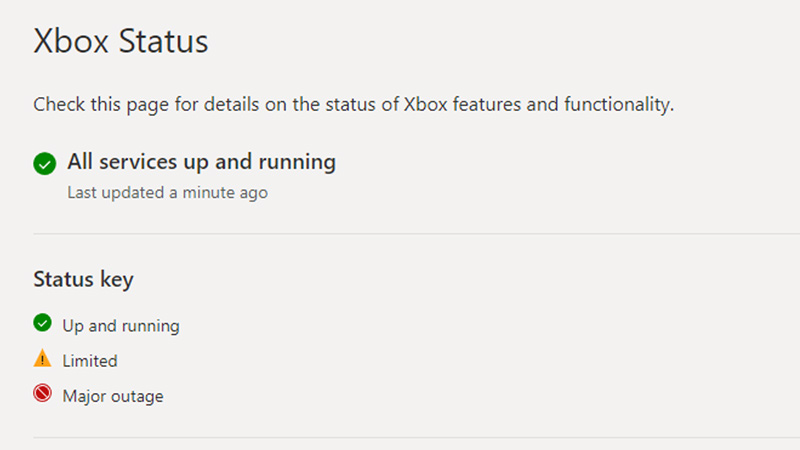
The best way if know if the Xbox party chat issue is from your side is by checking for the error on the Xbox status page. If the Xbox live servers are down then keep an eye on this server status page.
Once the services are back online, this page will be updated. Then you can use your party chat to communicate with your friends. Unfortunately, there’s nothing you can do in this case, apart from waiting for it to be fixed.
Check Your Privacy Settings
You need to check your Privacy Settings to make sure communications are enabled for everyone in a party. Here’s how to do this:
- Press the Xbox button on your controller.
- Go to “Profile & System” in your Xbox Guide.
- Click on “Settings”.
- Go to “Account”, then “Privacy & Online Safety”, and click on “Xbox Privacy”.
- From here you can choose “View Details & Customize”.
- And finally, select “Communication & Multiplayer”.
- Now check if you have enabled everyone to chat with you, from these settings.
Unmute or Unblock the Person
There is a chance that you have unintentionally muted or blocked a player on your system. To give the access to communicate with you, follow below steps:
- Open Guide by pressing the Xbox button on the controller.
- Go to “Parties & Chats”.
- Expand the party to see the members.
- Click on the person you want to unblock or unmute.
Check the Party Chat Volume
From the Parties & Chats, you can also check if you have reduced the volume to zero. To do this:
- Select the person from the party you want to check on.
- Verify the volume slider is not all the way down to zero.
- If so, raise the volume up to hear them.
Verify if Issue is Related to NAT Settings
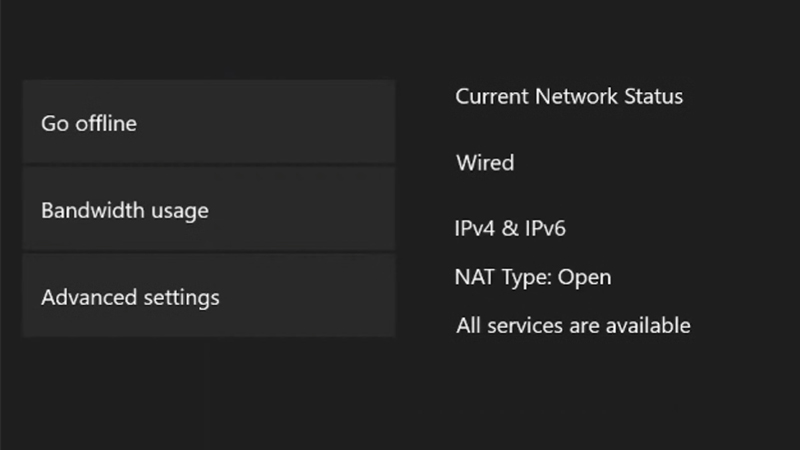
If you are facing network connectivity issues resulting in low latency then you will miss out on voice chat for better connectivity in-game. You can also try changing the NAT type. NAT type cannot be changed directly from your Xbox consoles. So here are few steps you need to tinker with your modem, to check and fix any network related issues if your Xbox party chat is not working:
- Open any web browser on your PC or mobile device.
- Type in your default gateway IP address.
- Enter your Username and type in your password.
- Go to your Router settings.
- Enable UPnP, this varies according to your router manufacturer.
- Apply your changes and go to your console.
- Open setting on your Xbox.
- Go to Settings.
- Click on Network.
- You will have Open NAT enabled on your console
- Click on the Test NAT Type to set it.
Once this is done you can restart both your modem and Xbox (do complete shutdown for 10-15 seconds then start again), and check your NAT type once again. Also, check your network speed in your settings to see if the connectivity issues are fixed. Now go back to the game and see if your party chat is working.
That’s everything you need to know about the fix for Xbox party chat down or not working. So while you are here, make sure to check out another guide on how to use Discord voice chat on your Xbox.