Close Menu
    Facebook X (Twitter) Instagram
    Gamer TweakGamer Tweak
    • GT Originals
    • Guides
      • AC Mirage
      • Starfield
      • Wordle
      • Mobile
      • GTA 6
      • AC Valhalla
      • Genshin Impact
      • Honkai Star Rail
      • Minecraft
      • Discord
      • Street Fighter 6
      • Project Slayers
      • The Sims 4
      • Lies of P
      • Zelda TOTK
    • Roblox
      • Roblox Codes
      • Blox Fruits
      • Type Soul
      • Grow a Garden
      • 99 Nights in the Forest
    • Review
    • Roblox Codes
    • BG3
    • CS2
    Gamer TweakGamer Tweak
    Home > Gaming Guides > Schedule 1: How to Play Co-op Multiplayer (Invite Friends)
    Video Game Guides

    Schedule 1: How to Play Co-op Multiplayer (Invite Friends)

    Nikita HarinameBy Nikita HarinameApril 14, 20252 Mins Read

    The premise of Schedule 1 is such that you start off being a small-timer with no cash and no connections; however, as you continue the grind, you can build your empire from scratch. Luckily, you can experience this journey with friends via the game’s co-op multiplayer mode, and here’s how you can invite them to your game.

    How to Invite Friends to Play Co-Op Multiplayer in Schedule 1

    • To invite friends to your lobby, launch the game via Steam and go to the main menu.
    • Click on the + icon at the top right corner of the screen.
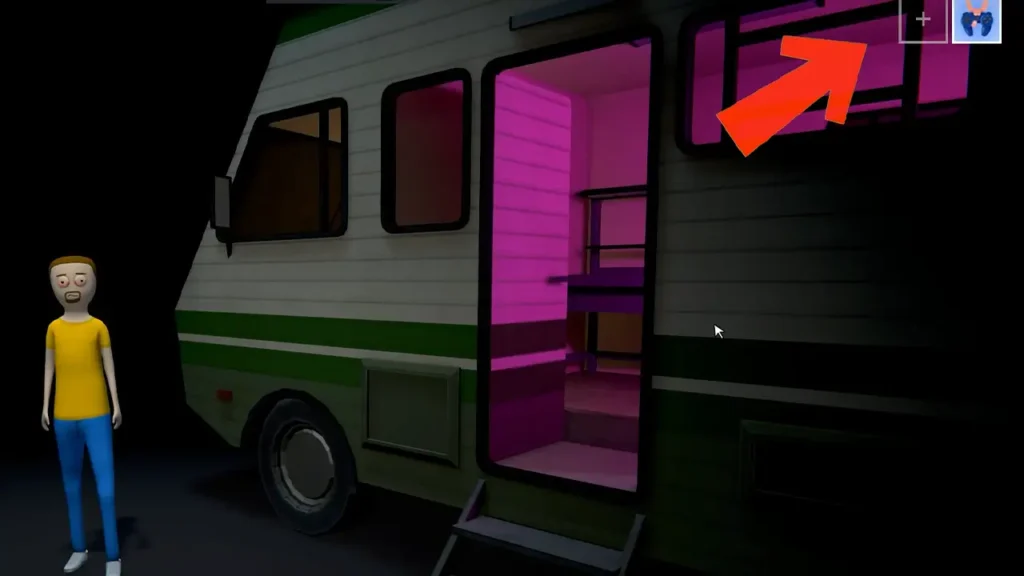
    • This will bring up a little window where you can see your Online Friends on Steam or, you can search the name of a friend to invite. If you don’t have them added yet, make sure to do it beforehand.
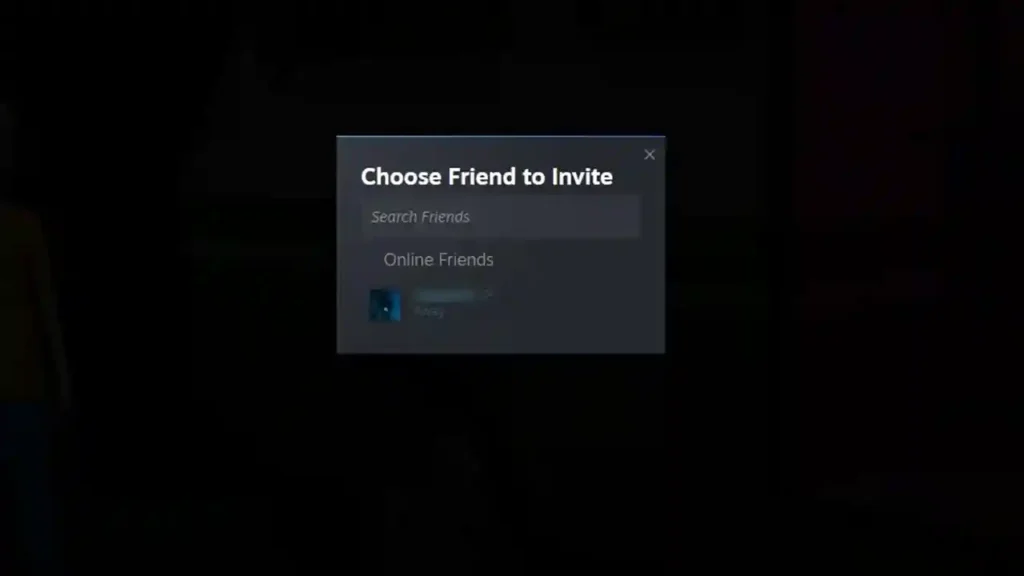
    • Next, send an invite. Your friend can accept it by pressing Shift + TAB, which opens the Steam Overlay. Then head to the chat, which is where the invite request will be shown.
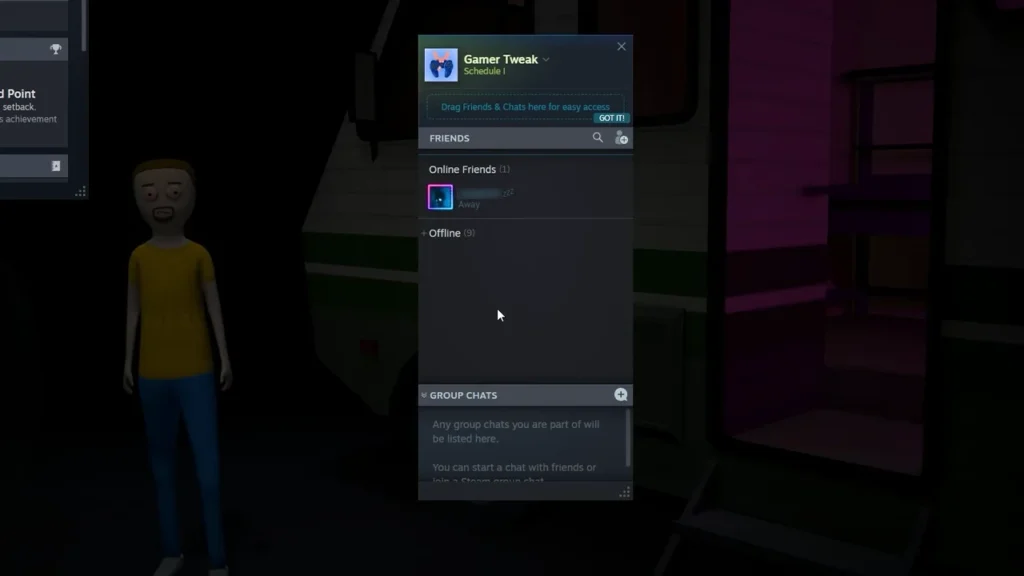
    • After accepting, they will join your lobby.

    That’s it, you can now play Schedule 1 with friends in co-op multiplayer mode.

    Games are almost always better when played with friends, but there are a couple of good reasons why it works for Schedule 1. Since the cash you deposit in the ATM is shared among all the players in the lobby, every player is free to spend and deposit the money as they prefer. Similarly, you can put items in the shared storage, so that your friends can use them whenever required.

    Here’s a visual guide to help you out:

    That’s all about inviting friends to your party in Schedule 1. If you’d like to know where to find your save file location or what to do if the Pawn Shop guy Mick isn’t there when you visit him, check out our linked guides to know more.

    Schedule I Guides
    Share. Facebook Twitter Pinterest LinkedIn Tumblr Email Reddit
    Nikita Hariname

    From making games to writing about them, she's been in the world of entertainment since a decade now. She writes features, the latest trending news and guides on games like Diablo 4, Overwatch 2, Roblox, codes and more fun stuff! Connect with her at - contactus@gamertweak.com

    Related Posts

    User Experience in Quick Online Games – How to Retain Players

    November 11, 2025

    How to Fix if Helldivers 2 Update is Taking Forever

    November 5, 2025

    TF2 Marketplaces: A Guide to Choosing the Right Platform

    October 11, 2025

    Top 10 Fortnite Creative Games You Can Play With Friends in 2025

    October 8, 2025
    Latest Codes

    Uma Racing Codes (November 2025)

    November 18, 2025

    NFL Universe Football Codes (November 2025)

    November 17, 2025

    Build a Zoo Codes – Nov 2025: Active List + Redeem Guide

    November 14, 2025

    Roadside Shawarma Roblox Codes (November 2025)

    November 13, 2025

    Cake Off Roblox Codes (November 2025)

    November 13, 2025

    Divine Duality Elemental Codes (November 2025)

    November 12, 2025
    Trending
    • Uma Racing Codes (November 2025)
    • How to Get Atomic Mutation in Fisch
    • How to Catch Skeletal Serpent in Fisch
    • NFL Universe Football Codes (November 2025)
    © 2025 Gamertweak.
    • Advertise With Us
    • About Us
    • Team
    • Contact Us
    • Privacy Policy
    • Terms
    • Open Critic

    Type above and press Enter to search. Press Esc to cancel.