In Street Fighter 6, many players want to install the PlayStation button prompts mod on their PC. That’s because the game shows the Xbox layout as soon as they connect a controller. And currently, it seems there are no options to change the layout settings on the PC. So if you prefer playing the game using the PS buttons, then we have got your back. Below we have explained all you need to do to install a PS buttons prompt mod to use a controller and play SF6.
How to Install PlayStation Button Prompts Mod in Street Fighter 6 (PC)
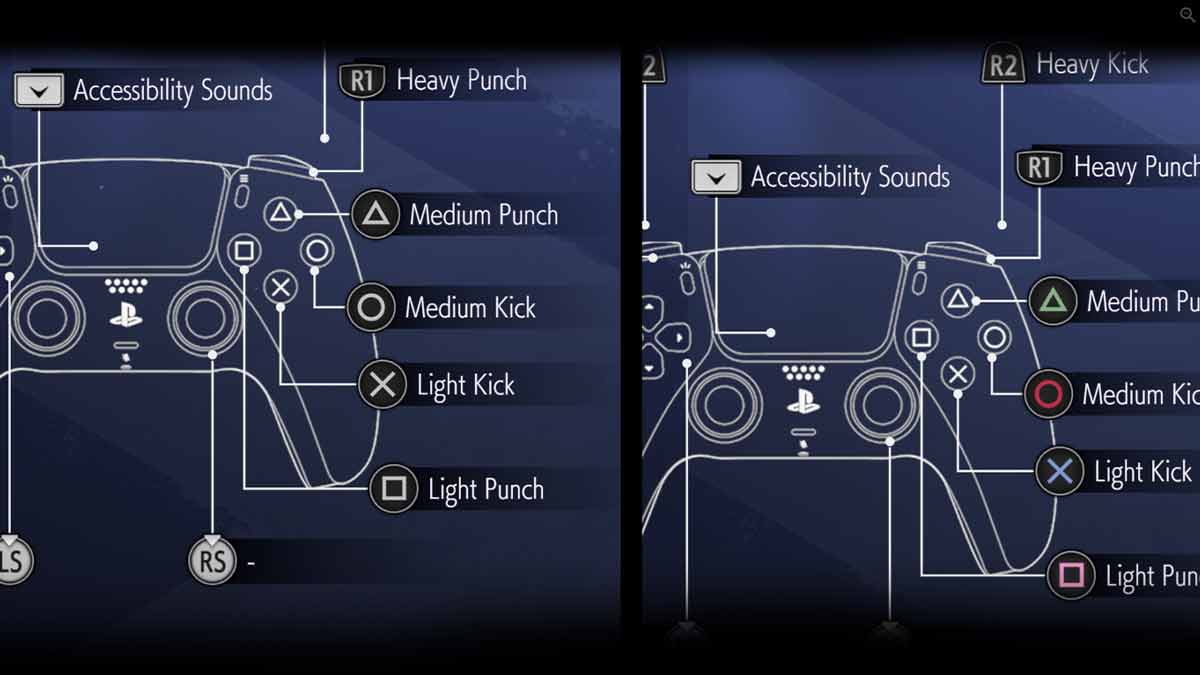
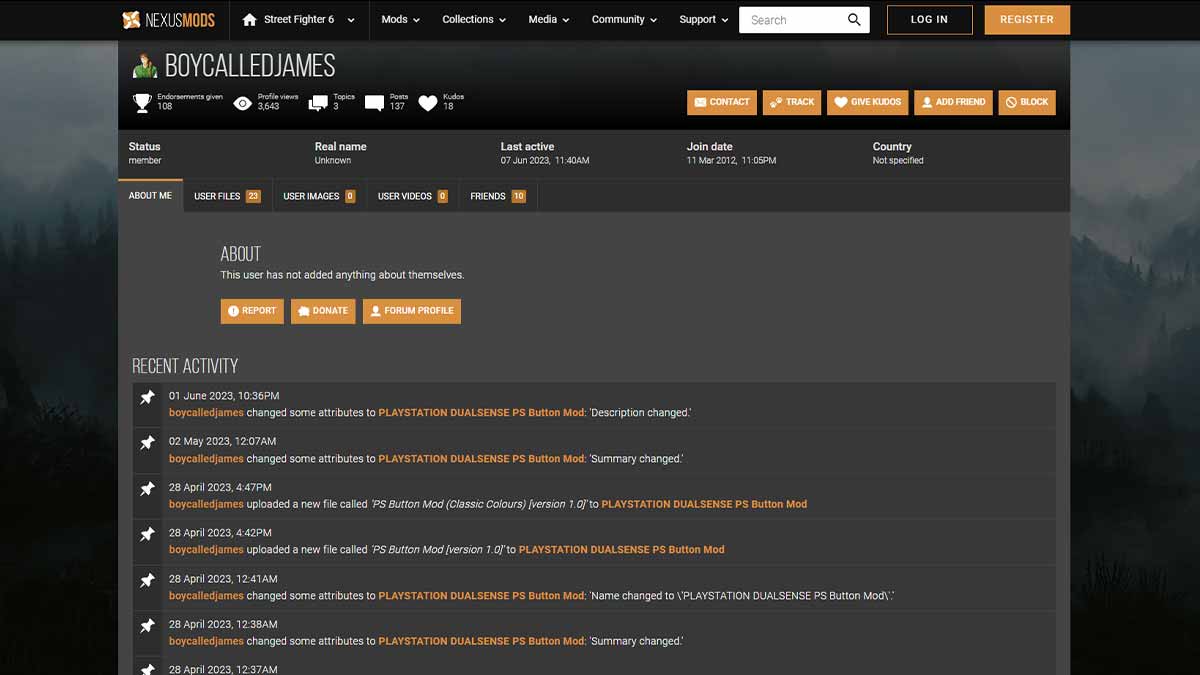
To download & install a Street Fighter 6 PlayStation button prompts mod for PC go to boycalledjames on Nexus Mods. This user has created a PlayStation Dualsense PS Button Mod that can help you get the PS layout easily. But before you do that, make sure to download the Fluffy Mod Manage from Nexus Mods. This is one of the most recommended mod managers when it comes to using mods in Capcom’s titles. If you’re not familiar with the installation process, then scroll down for steps.
Steps to Install Fluffy Mod Manager
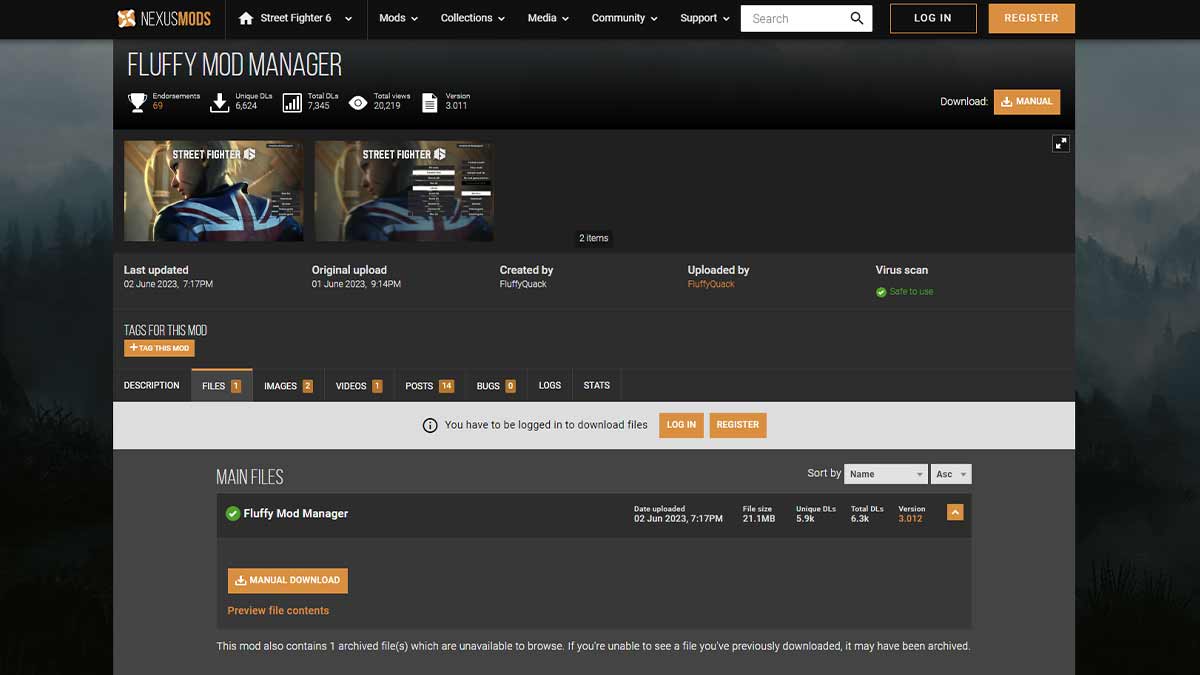
If you already have the Fluffy mod manager installed, you can skip this process and move further.
- First, go to Fluffy Mod Manager and download the mod by clicking Manual Download.
- Next, extract the zip file by using any trusted Unzip app.
- After that, open the Fluffy mod manager folder and launch the app by clicking Mod Manage exe.
- Then click the Choose Game option and select the Street Fighter 6 game.
- Once done, ensure the mod manager detects the game path.
- If it doesn’t, click the Define game path option to locate the SF6 game folder and set a path.
- And after that, click on the Mod list option, and there you’ll find all the game mods you’ve downloaded.
- That brings us to download & install the PlayStation button prompts mod for SF6 PC.
Steps to Install PS Button Prompts Mod for SF6 PC
After you’re done installing the Fluffy Mod Manager, installing the PS button prompts mod will be pretty easy.
- First, go to boycalledjames and download the PlayStation Dualsense PS Button Mod.
- Next, drag and drop the PS button prompts mod in the Fluffy Mod Manager mods folder> Games> SF6> Mods.
- Once done, open the mod manager, and in the Mods list under Textures, it’ll indicate the downloaded mod.
- Now go ahead and toggle the Button prompts: DualSense option to install the mod.
- And then, launch the game, and you’ll see the PS button prompts layout you were looking for.
- Yes, it’s that simple to uninstall or disable the go and toggle the same button.
That covers downloading and installing the PlayStation button prompts mod for PC in Street Fighter 6. If you plan to install more mods, check out our list of the best Mods available for SF6. Also, take a look at the ways to farm Zenny quickly.