Home > Starfield > How To Show FPS In Starfield

Starfield FPS Counter: How To Show FPS

Updated Date :

You can control and alter settings to display your FPS counter in Starfield. This game allows the player to explore extensively throughout the game, which indirectly leads to higher GPU requirements. To keep track of this, it is essential to be aware of your FPS constantly. Hopefully, this guide might help you deal with performance bugs like lagging, freezing, and stuttering.

How to Show FPS Counter in Starfield
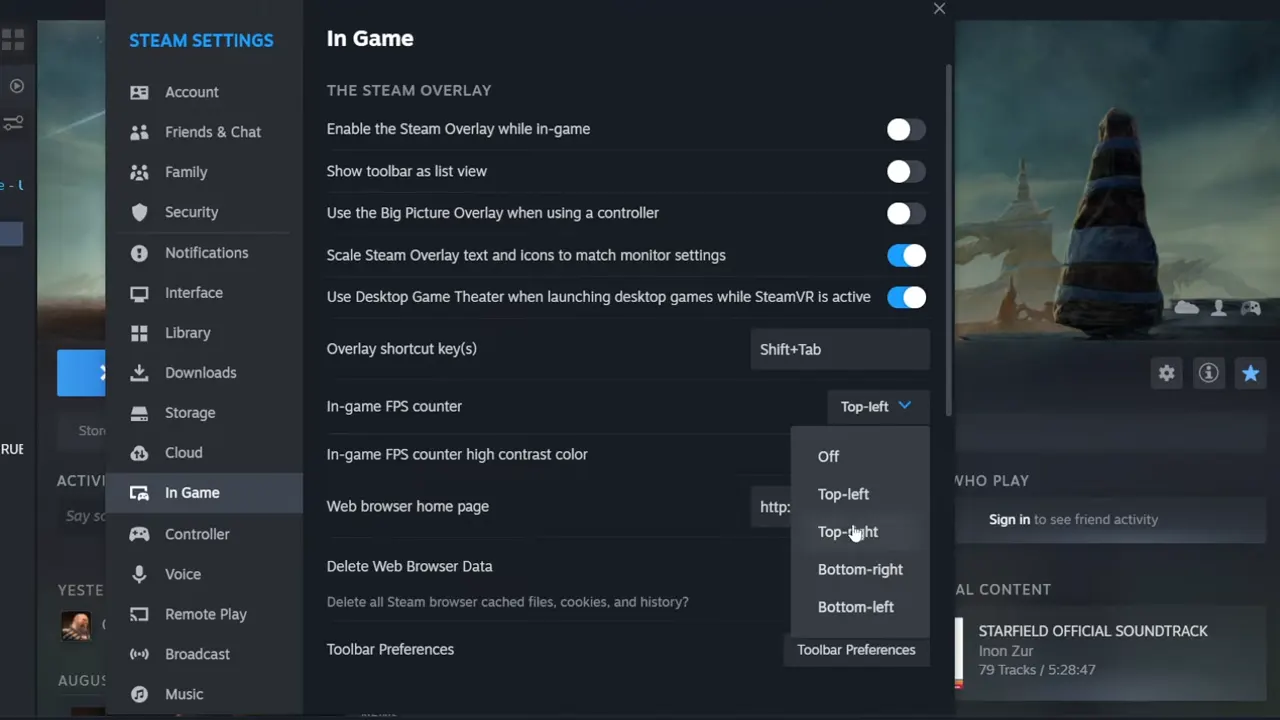
Starfield- Learn How To Display FPS Counter On Your Screen

For Steam:

  1. Go to the Steam app.
  2. In the top left corner, when you click on the ‘Steam’ icon, a drop-down menu will come up.
  3. From there, go to ‘Settings’
  4. Once you have opened Steam settings, click on ‘In-Game’.
  5. From the In-Game section, there will be an option named ‘In-Game FPS Counter’ – You will get four spots to choose from: Top-Left, Top-Right, Bottom-Right, and Bottom-Left.
  6. Once you have selected your desired location for your counter, you can start the game and find it in the spot you had chosen.
  7. Under the FPS counter option in settings, there is also an ‘In-Game FPS Counter High Contrast Color’, button that you can click to enable.

FPS Counter for Game bar:

  1. To activate, hold the Windows key and G.
  2. From the Menu, click on the Performance button.
  3. Select the performance tab and drag it to your desired location on your screen and put it at that spot.

This will help you keep track of your FPS during your gameplay.

FPS counter using NVIDIA GeForce Experience:

  1. Open the app, and go to the ‘Settings Cog’ button on the top right.
  2. From the General section, Switch on the ‘In-game Overlay’ option.
  3. Go to the In-game Overlay section and go over to the HUD Layout.
  4. Click on ‘Performance’ and choose which corner of the screen you want to set your counter.

By using the methods mentioned in this guide, you will be able to keep an eye on your FPS in Starfield. If you are using mods but unable to get them to work smoothly, find out what to do if Starfield mods are not working.
  • Giant Simulator Reborn Codes (July 2026)

    Giant Simulator Reborn Codes (July 2026)

    Published Date :

    If you want some free Gold, you definitely need to redeem these Giant Simulator Reborn codes! These rewards will help you upgrade your giant much faster as you defeat enemies and grow stronger. Since this game revolves around training your character, collecting pets, and increasing your size to take on tougher challenges, every extra bit… Read More

  • Gakuran Codes (July 2026)

    Gakuran Codes (July 2026)

    Published Date :

    Gakuran codes are something many players look for after jumping into the game’s action-packed school battles. Inspired by classic delinquent manga and anime, Gakuran lets you fight rival students and explore an open-world campus filled with challenges. Find out if there’s a way to unlock free in-game rewards and speed up your progression. Last checked… Read More

  • Spin a Car Codes (July 2026)

    Spin a Car Codes (July 2026)

    Published Date :

    Spinning games are pretty popular on Roblox and rightly so, because they’re very addictive! Spin a Car is where you roll dice to unlock various cars and upgrades – the rarer your vehicle, the more money it makes! Since free rewards are always welcome, the developers share codes that provide Gasoline, Coin Potion, cash and… Read More

  • Build Your Butterfly Garden Codes (July 2026)

    Build Your Butterfly Garden Codes (July 2026)

    Published Date :

    Build Your Butterfly Garden codes let you grow your butterfly sanctuary even faster by rewarding you with useful items like Eggs, Flowerbeds, and Luck Boosts. As you hatch new butterflies, expand your collection, and decorate your peaceful garden, these freebies can give your progress quite a boost! Here are the latest rewards you don’t want… Read More