Many PC players are experiencing a few optimization issues at startup or mid-way during their playthrough, resulting in Starfield crashing and freezing altogether. Although the substantial reason behind this sudden crash is unknown, there are a few fixes mentioned below in the article that you can try to resolve this problem and get the game up and running smoothly.
Also Read | Fix Starfield stuttering and FPS drops
Why is Starfield Crashing on PC?

There could be possibly many reasons why Starfield keeps crashing, from outdated graphics drivers to unoptimized display and graphics settings. Also, there could be an optimization issue from the developer side. However, until there’s a fix patch from the developer, you can follow these methods mentioned below one by one to possibly resolve the Starfield crashing and game freezing issue.
How to Fix Starfield Crashing and Game Freezing on PC
Before we get into the below methods, there are a few simple troubleshooting which you use to resolve such game freezes and crash like restarting your computer and relaunching the game again, or you can even try clearing cache data for the game. Once you are done with these normal troubleshoots and still the issue occurs, you can try the following fixes to run Starfield stablely.
1. Cap FPS / Fixing FPS
Capping FPS is a way of fixing the Frame rate of a game to a specific threshold. Although there isn’t a dedicated setting to limit the FPS for Starfield via in-game setting, this can be done using the NVIDIA or AMD Radeon control panel in their respective software.
Additionally, users can turn on Vsync and off the Upscaling option in their computer to achieve seamless display output
- Firstly, in the Starfield game settings, go to the Display settings.
- Now, inside the Display settings, turn on the Vsync and disable the Upscaling option.
Now, you can restart Starfield and check if you are still facing any crashing issues this time around. This fix works most of the time.
2. Adjusting Graphics Setting
If Capping FPS doesn’t work, you can also optimize your in-game graphics setting. Additionally, you can use software like GeForce Experience or AMD’s Radeon Software aka Adrenalin to optimize Starfield‘s settings, ensuring it works as per your setup’s capacity. Lowering your graphical settings eases the GPU, fixing the GPU-related issues. Additionally, running on low or medium setting help optimize the game more effectively and makes it more stable, fixing game freeze.
3. Updating Graphics Driver
An updated GPU driver ensures the smooth function of the graphics card with the other display aspects. As we know, Starfield is a brand-new and highly demanding game, it requires the latest available driver to work smoothly. Be it AMD or Nvidia, an up-to-date graphics driver ensures optimum functioning and could possibly fix Starfield game crashes.
Following are the steps to update the graphics driver manually on the PC:
- Firstly, click Start and type “Device Manager,”
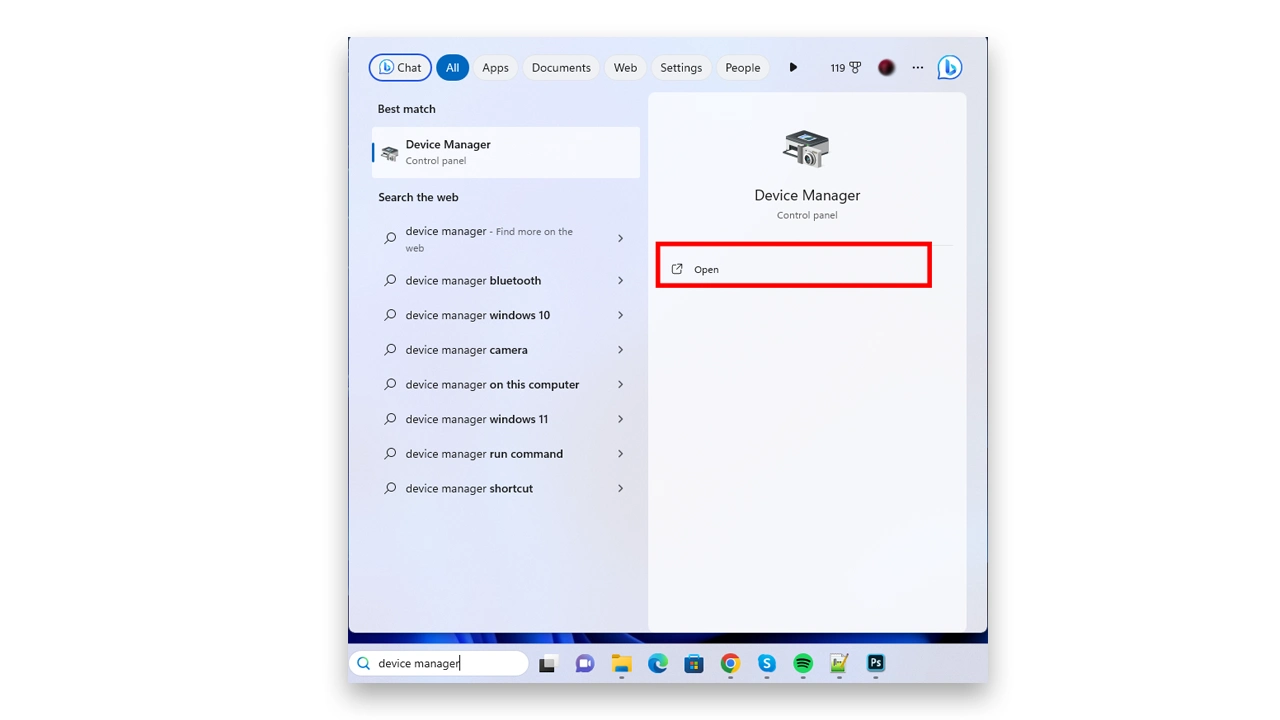
- Now, proceed to open it by clicking on it.
- Next, in the prompt windows, click “Display Adapters” and double-click on the graphics card.
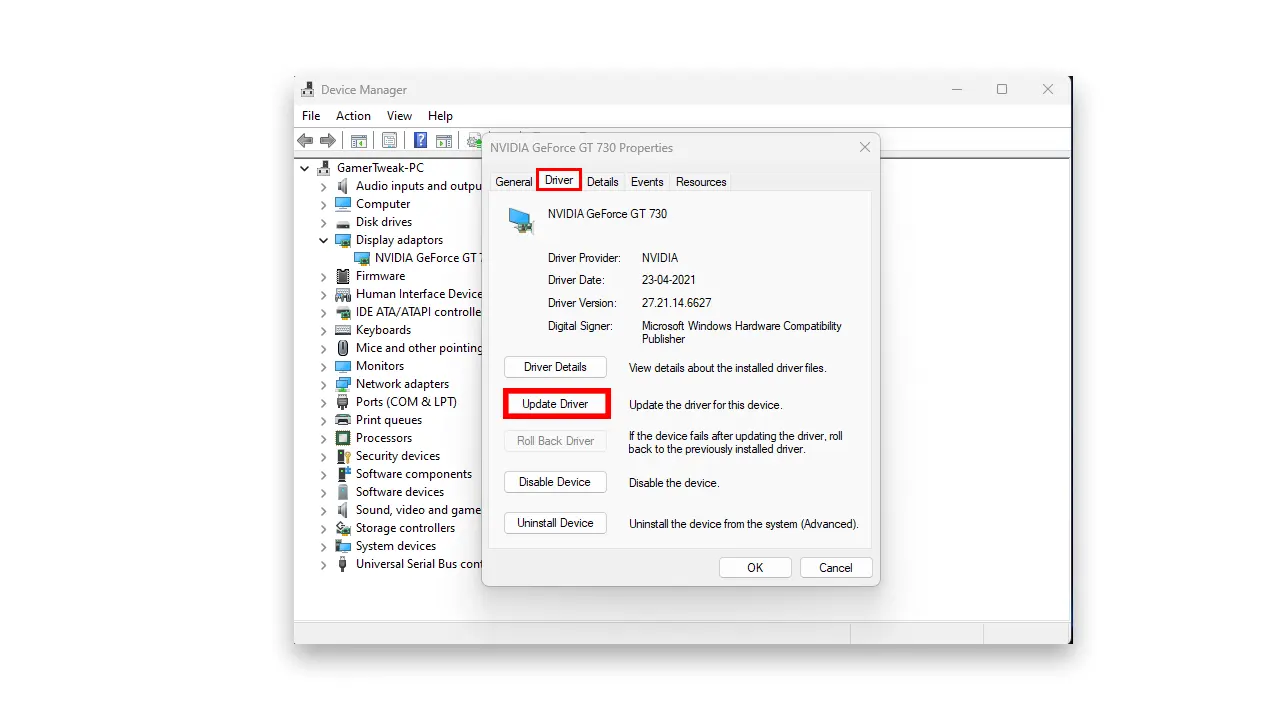
- Lastly, in the prompt window, Open the “Driver” tab, click “Update Driver”, and select “Search automatically for updated driver software”.
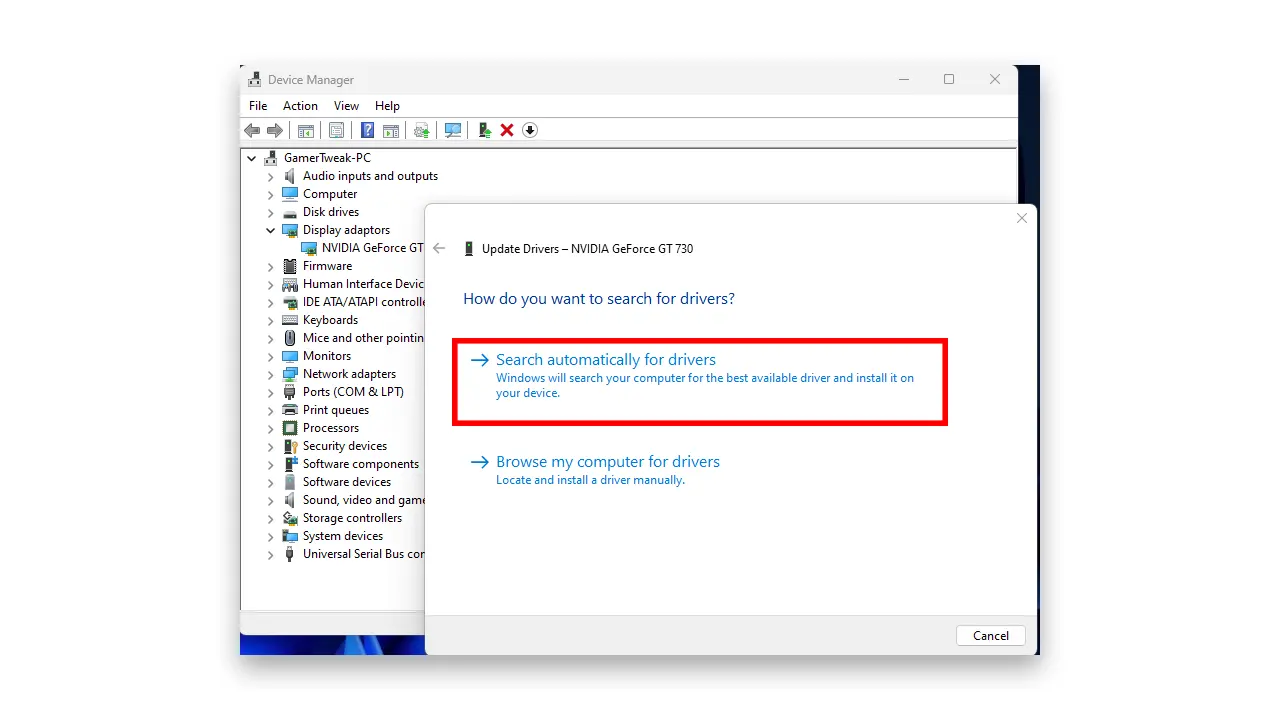
Now, Windows will automatically search and install the available driver updates to your PC. Once done, you can try again with restarting the Starfield game again.
4. Repair Starfield Game Files
One of the potential reasons why your Starfield is crashing or often freezes to loading screen could be a missing or corrupted file. This can be easily fixed by going through reinstallation again, just use the repair feature in Stream settings.
Steam has a dedicated game file check utility that can scan and re-download the game parts that are missing or corrupted. Here’s how to do it:
- Open the Steam app on your PC.
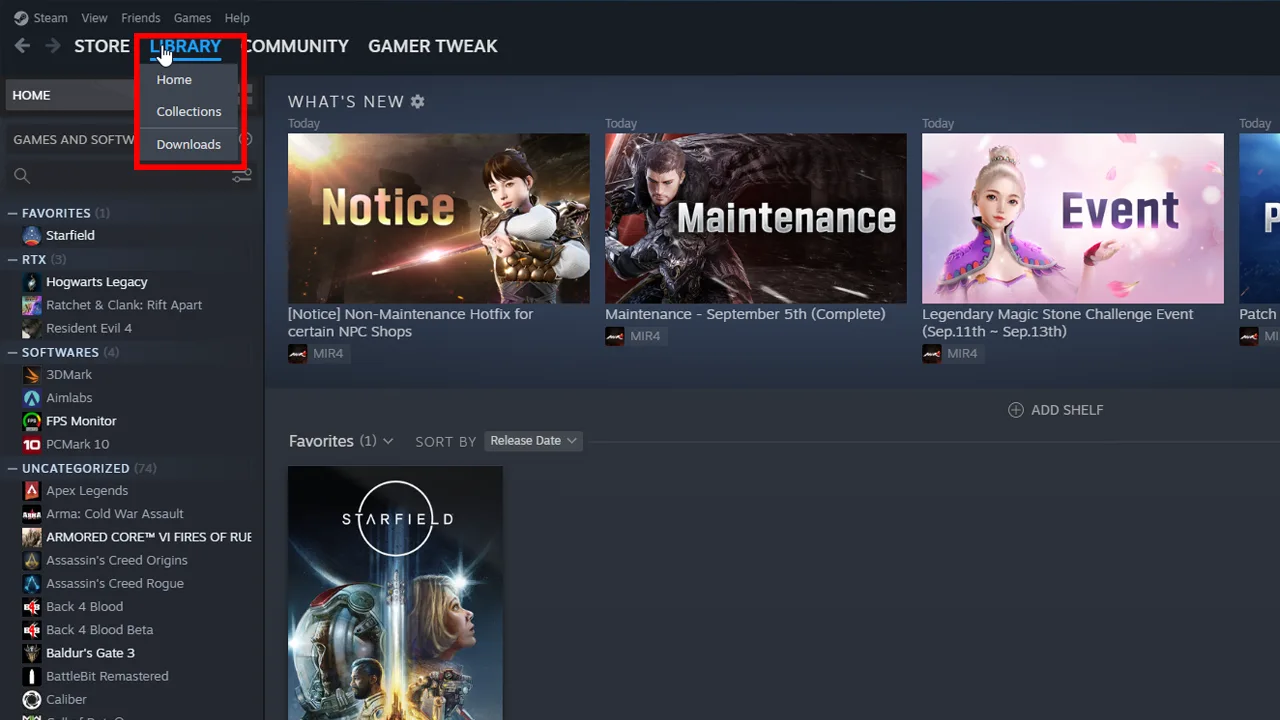
- Now, right-click on Starfield in your Game Library and click on properties.
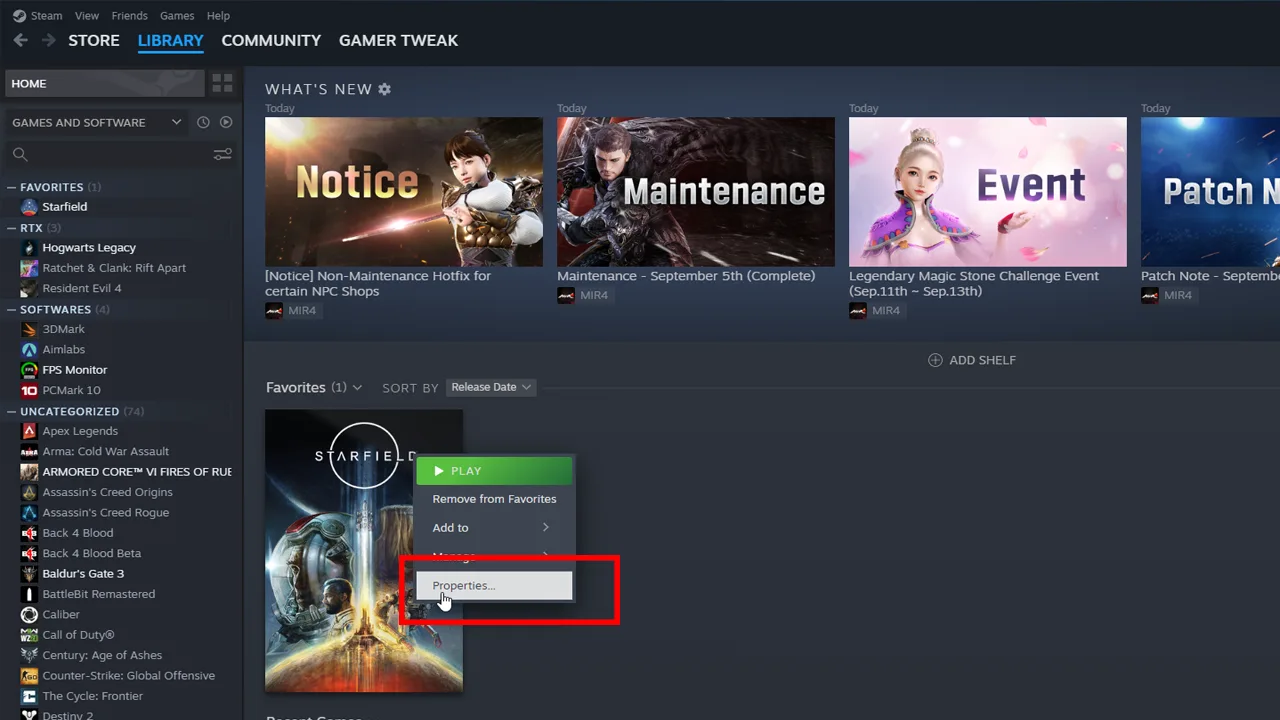
- Once Starfield’s properties are displayed, click on Installed files on the left panel and click on the Verify Integrity of Game Files.
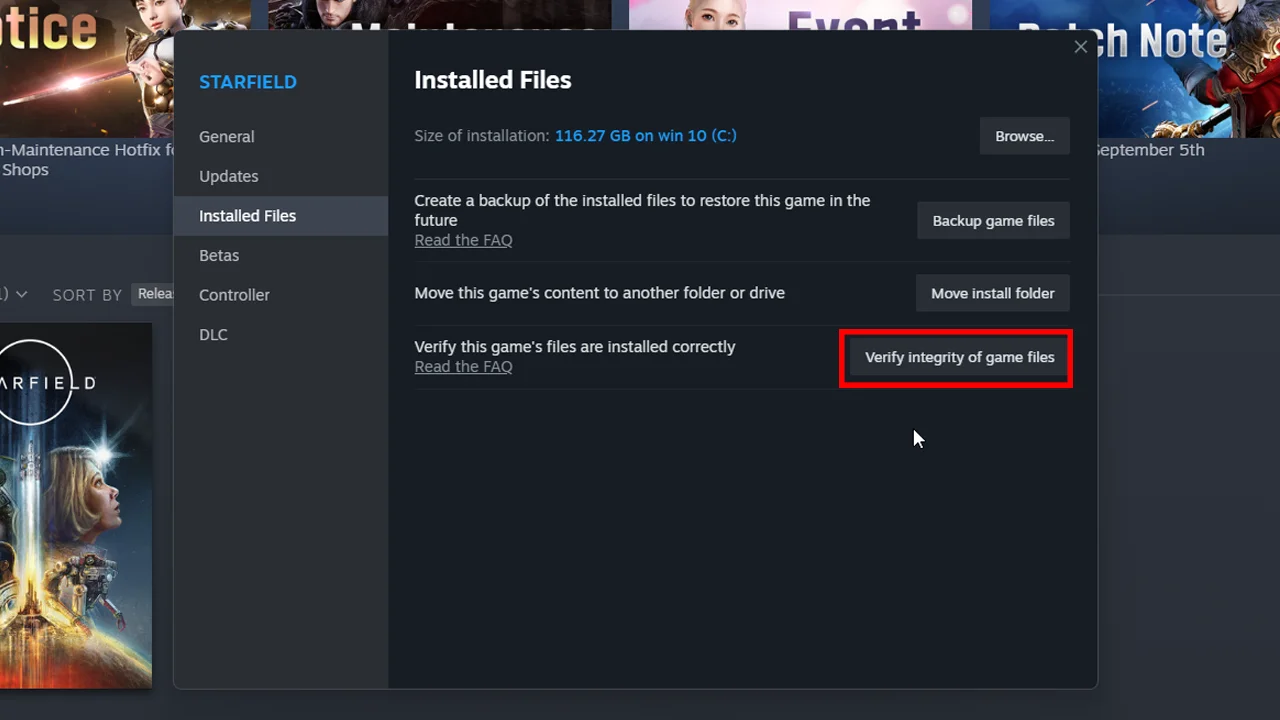
Once you select to verify the integrity of game files. Steam scans Starfield’s game repository and detects files that are missing or become corrupted. Additionally, Steam will start downloading the missing or corrupted files and replace them. Now you can restart, the game, without Starfield being crashed again.
Furthermore, some users also mentioned on Reddit how enabling “Don’t use optimizations for windowed games” in display settings> Graphics > Starfield fixes this random crashing. And that’s everything covered for how to fix the Starfield crashing and game freezing issue.
If this guide helped resolve the problem for you, check out other recommended articles on this game like how to build an outpost in Starfield or you can explore a dedication section for Starfield on our website to find more tricks and guides.