Some GTA 6 players are experiencing repeated crashes on PS5, with the game suddenly closing and displaying error code CE-108255-1. For some, the problem occurs during the opening cutscenes, while others encounter it several hours into the story. Some players also report on social media that they get stuck at specific missions because the same crash happens every time they reach a particular point.
If you’re experiencing the GTA 6 error CE-108255-1, there are several troubleshooting steps worth trying. These include updating the game, changing your PS5 display settings, clearing the system cache, rebuilding the database, and reinstalling the game. However, some of these methods only resolved the issue for some players.
What Is GTA 6 Crashing Error CE-108255-1 on PS5?
CE-108255-1 is a PlayStation 5 error code that appears when a game or application encounters a problem and closes unexpectedly. When this happens in GTA 6, the game exits and returns you to the PS5 home screen.
The error does not identify the exact cause of the crash. It doesn’t automatically mean your console is overheating, has a damaged SSD, or is suffering from a hardware failure. A game-related software problem can produce the same error.
Players have reported several different crash scenarios on Reddit and other social media:
- Opening Prologue: Some players experience the error during the opening cutscene, preventing them from starting the game.
- Pipework Mission: Players have reported repeated crashes when Jason uses a plunger near a sink during this early mission.
- Lucia’s Prison Sequence: Some players encounter the error during Lucia’s opening section, even after skipping the cutscene.
- Random Gameplay Crashes: Other players can explore Leonida normally for several minutes before the game suddenly closes.
The problem has been reported on the original PS5, PS5 Slim, and PS5 Pro. However, there is no confirmed evidence that one particular console model is more affected than another.
How to Fix GTA 6 Crashing Error CE-108255-1 on PS5
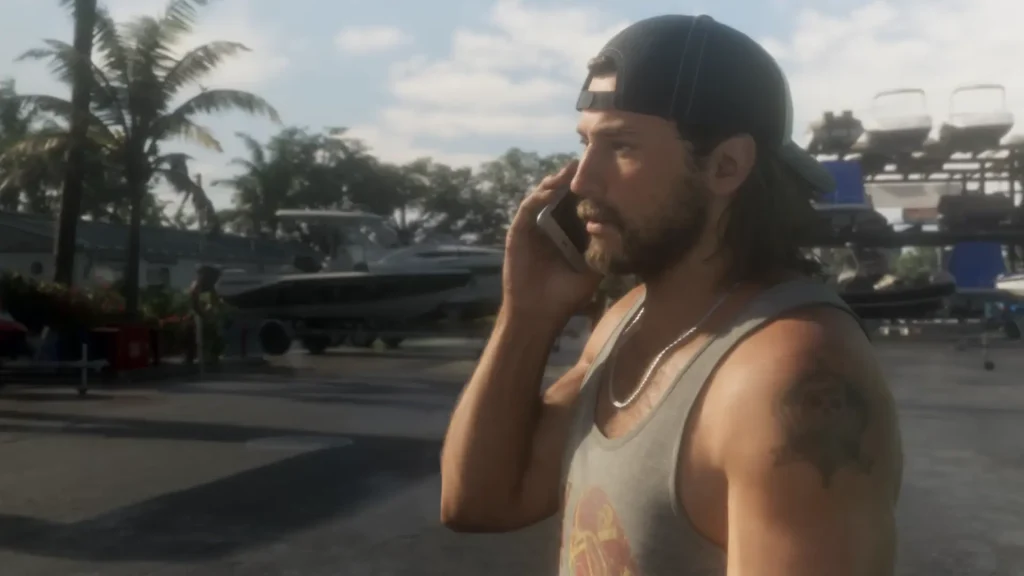
Try the following solutions in order. The most successful and confirmed method is solution 7, but start with the simpler troubleshooting methods before trying anything that could affect your saved files and will also use your time and internet data. With that said, here are the steps we suggest you follow in order until one of them fixes your game.
1. Check for GTA 6 Updates
Start by checking whether Rockstar has released a new update for GTA 6 (especially if you have preloaded before recent updates). A new update could fix crashes caused by software bugs, so make sure you’re running the latest version.
Follow these steps:
- Return to the PS5 home screen.
- Highlight GTA 6 in your games library.
- Press the Options button on your DualSense controller.
- Select Check for Update.
- Download and install any available update.
- Restart the game and check whether the crash continues.
If your game is already updated, move on to the next solution.
2. Update Your PS5 System Software
Sony recently released a system update before the release of GTA 6 to address the current jailbreak vulnerabilities. So, if you are on this outdated system software, it can cause compatibility and stability problems with games. Make sure your console has the latest available firmware before trying more complicated fixes.
- Open Settings on your PS5.
- Select System.
- Go to System Software.
- Select System Software Update and Settings.
- Choose Update System Software.
- Install any available update and restart your console.
You can also check the installed version under Settings > System > System Software > Console Information.
Once the update is complete, launch GTA 6 again and see whether the error CE-108255-1 still appears.
3. Change Your PS5 Resolution to 1080p
Some players have managed to get past repeated GTA 6 crashes by changing their PS5’s video output resolution to 1080p. This is an unofficial workaround and hasn’t worked for everyone, but it’s worth trying if the game keeps crashing at the same point. The idea is to lower the pressure on the PS5 chip. But as we understand it, changing the resolution doesn’t affect the game’s performance. We are still adding this here only because players are saying it fixed the error for them. So it is worth a try.
Here’s how to change the resolution:
- Open Settings on your PS5.
- Select Screen and Video.
- Go to Video Output.
- Select Resolution.
- Change the setting to 1080p.
- Restart GTA 6 and try playing again.
This reduces the console’s output resolution so that the image may look less sharp on a 4K television. If the game becomes stable, you can continue playing with this setting temporarily.
If the crash persists, restore your preferred resolution and try the next solution.
4. Disable HDR and VRR Temporarily
Certain display settings can be worth testing when a game repeatedly crashes. Try disabling HDR and Variable Refresh Rate (VRR) to see whether either setting makes a difference.
To disable HDR:
- Open Settings.
- Select Screen and Video.
- Choose Video Output.
- Select HDR.
- Change it to Off.
To disable VRR, return to the Video Output menu and change VRR to Off.
Restart GTA 6 after changing these settings. If the game still crashes, you can restore HDR and VRR to their previous settings.
These are diagnostic tests, not confirmed solutions for CE-108255-1.
5. Clear the PS5 System Cache
Temporary system data can sometimes contribute to software problems. Clearing the PS5 cache is a relatively simple maintenance step that you can perform through Safe Mode.
Follow these instructions:
- Completely turn off your PS5. Do not leave it in Rest Mode.
- Press and hold the power button on the console.
- Release it after hearing the second beep.
- Connect your DualSense controller using a USB cable.
- Press the PS button.
- Select Clear Cache and Rebuild Database.
- Choose Clear System Software Cache.
- Let the process finish, then restart the console.
Launch GTA 6 and check whether the crashes have stopped.
Clearing the cache does not delete your GTA 6 saved games. If the problem continues, you can try rebuilding the database next.
6. Rebuild the PS5 Database
The Rebuild Database option scans the console’s storage and reorganizes its content. It can help resolve certain system issues, although it is not a guaranteed solution for GTA 6 crashes.
To rebuild the database:
- Turn off your PS5 completely.
- Hold the power button until you hear the second beep.
- Connect your DualSense controller using a USB cable.
- Press the PS button.
- Select Clear Cache and Rebuild Database.
- Choose Rebuild Database.
- Wait for the process to finish.
Your console may take some time to complete the operation, depending on how much data is stored on it.
Once the PS5 restarts, open GTA 6 and check whether the error still occurs.
7. Reinstall GTA 6
If none of the previous methods work, try deleting and reinstalling GTA 6. This is the current method with the highest success rate. But given the size of the game, we strongly suggest you try the method above before doing the following. This can help if the installed game files are damaged or incomplete.
Before doing this, back up your saved data.
- Open Settings on your PS5.
- Select Storage.
- Choose Console Storage.
- Open Games and Apps.
- Select GTA 6.
- Choose Delete.
- Return to your Games Library and download GTA 6 again.
- Install the latest available update before launching the game.
Deleting the game does not normally delete its separately stored save data. However, check your saved-game backups (and cloud storage, if available) before proceeding so you don’t risk losing your progress.
Also, please keep in mind that reinstalling GTA 6 has not resolved the problem for every affected player.
8. Contact PlayStation Support
If GTA 6 continues crashing after these troubleshooting steps (especially after reinstalling the game once), contact PlayStation Support for further assistance.
Provide the following information when submitting your support request:
- Your PS5 model (original, Slim, or Pro).
- The exact error code: CE-108255-1.
- Your GTA 6 game version and PS5 system software version.
- The mission or activity where the crash occurs.
- Whether other PS5 games are also crashing.
- The troubleshooting methods you have already attempted.
This information can help support determine whether the problem is isolated to GTA 6 or might involve your console.
Avoid performing a factory reset or reinstalling the PS5 system software as an early troubleshooting step. These operations can erase local data, and there is no guarantee they will resolve this particular crash.
Why Does GTA 6 Keep Crashing on PS5?
The exact cause of the GTA 6 CE-108255-1 error has not been established. The crashes appear at different points in the game, and affected players have reported the problem on multiple PS5 models.
One possibility is a game-side software issue that causes the application to fail under particular circumstances. However, neither Rockstar nor Sony has confirmed the underlying cause.
There has also been speculation about overheating and the PS5’s liquid-metal cooling system. However, the error code itself does not establish a cooling problem. Players using relatively new consoles have also reported crashes, so there is no reason to assume that an older or damaged console is responsible.
It’s also important to distinguish between two situations:
- Game crash: GTA 6 closes and returns you to the PS5 home screen with CE-108255-1.
- Console shutdown: The entire PS5 powers off unexpectedly, potentially with an overheating warning.
These are different problems and shouldn’t automatically be treated as the same hardware fault.
Has Rockstar Fixed GTA 6 Error CE-108255-1?
As of today, there is no confirmed permanent fix or dedicated patch for GTA 6 error CE-108255-1. Rockstar’s console troubleshooting guidance only directs players to the relevant PlayStation or Xbox support resources. At the same time, Sony’s official page recommends updating the affected game and contacting PlayStation Repairs if the problem continues.
Players have tried changing display settings, clearing the cache, rebuilding the database, restoring licenses, and reinstalling the game. However, these methods have not produced a consistent solution.
If you’re affected, keep GTA 6 and your PS5 system software updated. A future game update may address the underlying problem, but there is currently no confirmed release date for a fix.