Steam Remote Play allows players to connect to a game on one computer when the game process is actually running on another computer elsewhere. It is a useful option that players can use to play games that are not originally on the device that they are using currently. Remote Play is quite easy to use but players will need the Steam Link app in order to connect the devices and play.
Since all Steam games can be played streaming between your own computers, you can enjoy the games even if you cannot get on your device. With Remote Play Together, players can invite their Steam Friends to join their local co-op sessions remotely, without having to own or launch the game themselves.
How Does Steam Remote Play Work
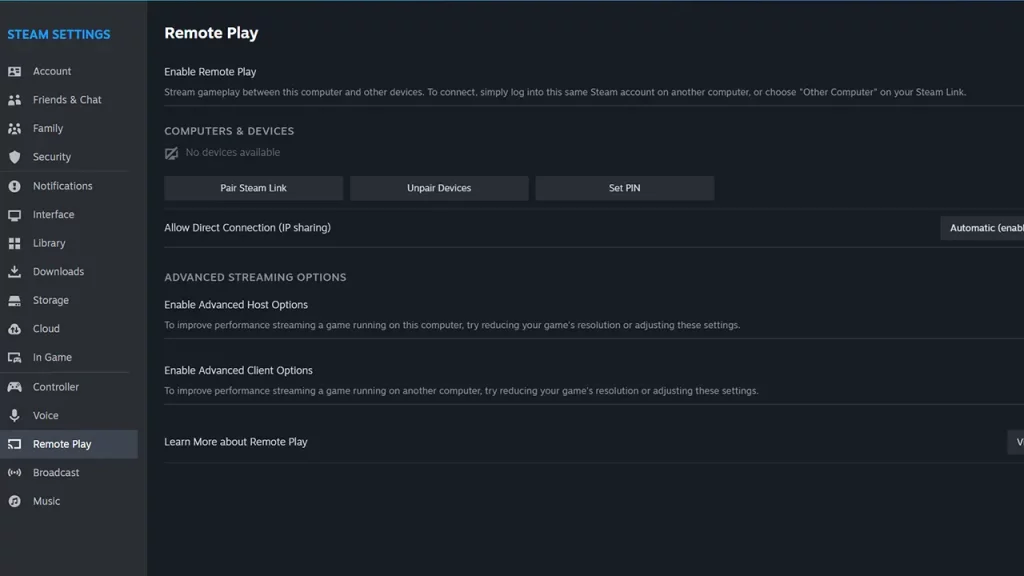
Steam Remote Play works by sending the game input from the device you are using to the game process on the remote computer. The game audio and video are captured on the remote computer and sent to the device via Steam. Even if players would not have been able to play the games on the device, any two computers connected to Steam can be used to stream a gameplay session and play.
How to Use Steam Remote Play
To activate and use Steam Remote Play, players will need to follow these steps:
- Log in to the Steam client on the computer with the installed game that you wish to play remotely.
- After that, log into Steam on another computer or a supported device and make sure that the Steam Link app is installed.
- Once that is done, you can launch and play the game remotely from the Steam Library.
How to Use Remote Play Together
To use Remote Play Together and play with your friends, follow these steps:
- Launch the game that you wish to play.
- Next, make sure your friend is logged in to Steam from a supported device. You can check supported devices from the Remote Play option Steam Settings.
- Now, open your Steam Overlay in-game by pressing Shift + Tab.
- After that, right-click your friend from your Steam Friends list and select ‘Remote Play Together’.
- Once your friend accepts the invite, they will be able to play the game with you.
How to Disable Steam Remote Play
Players can easily disable the Remote Play option by heading to Steam Settings and then selecting the Remote Play option. You can see all connected devices and choose to disable one or the option entirely.
All Devices to Use Steam Link
Steam Link is available on the following devices:
- iPhone, iPad, & Apple TV (11.0+)
- Android (5.0+) phone, tablet, & TV
- Android users without access to Google Play
- Raspberry Pi 3, 3+, & 4
- Windows
- Linux
- MacOS
- Meta Quest 2, 3, and Pro
That’s all you will need from this guide. If you found this guide helpful, do check out our other Steam guides in our dedicated section here at Gamer Tweak.