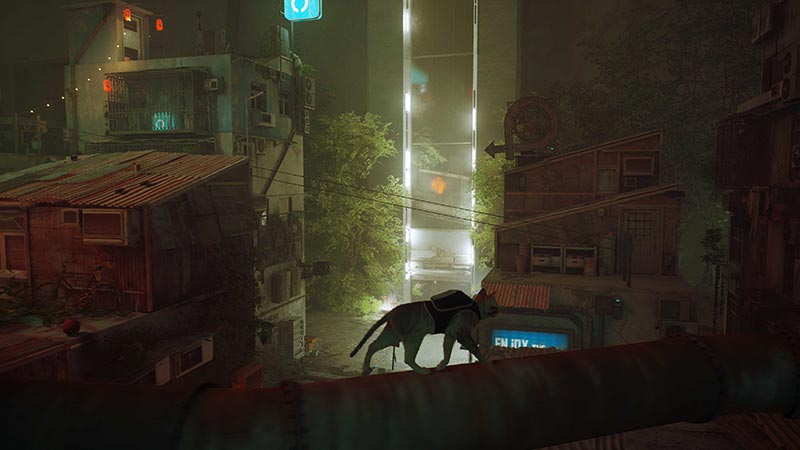
Stray is a game all about reuniting a lost cat with its family. This game takes you all over a cybercity with tons of cool bots. Here, you go through alleys, buildings, and more with your trusty B-12 bot by your side. As you play the game, you will come across certain errors at some point or another. Some prevent you from starting the game at all. One of these is the UE4-HK Project Game Has Crashed error on Stray. Luckily, this is a common error for many games on Steam and so, the solutions for this issue are easy to come by. In this guide, we will show you a couple of ways for you to fix the UE4-HK Project Game Has Crashed error for Stray.
How to Fix Stray UE4-HK Project Game Has Crashed Error
Sometimes these errors are due to bugs and others due to connectivity errors. No matter the platform, players will always face these problems. Of course, over time, the game will get better but the issues do remain. Here are all of the solutions that you need to follow in order to fix the UE4-HK Project Game Has Crashed error:
- Check Your System Requirements
- Run the game as an Administrator
- Close the background programs
- Verify Stray Files
- Run with DirectX 11
- Update Microsoft Visual C++ Redistributable
- Update GPU Drivers
- Disable Overlay Apps
- Install All Pending Windows Updates
- Disable Antivirus and Firewall Programs
- Launch the game in Windowed Mode (Steam)
- Disconnect other devices
- Reset the Game
- Reinstall the Game
While some of these are self-explanatory, we will explore the step-by-step process needed to be followed for the rest.
Check Your System Requirements
Here are the minimum system requirements for Stray:
- CPU: Intel Core i5-2550K or AMD FX-8350
- RAM: 8 GB
- OS: Windows 10
- Video card: NVIDIA GeForce GTX 650 Ti, 2 GB or AMD Radeon R7 360, 2 GB
- PIXEL shader: 5.0
- VERTEX shader: 5.0
- Free disk space: 10 GB
- Dedicated video RAM: 2048 MB
Here are the recommended system requirements for Stray:
- CPU: Intel Core i5-8400 or AMD Ryzen 5 2600
- RAM: 8 GB
- OS: Windows 10
- Video card: NVIDIA GeForce GTX 780, 3 GB or AMD Radeon R9 290X, 4 GB
- PIXEL shader: 5.0
- VERTEX shader: 5.0
- Free disk space: 10 GB
- Dedicated video RAM: 3 GB (AMD 4GB)
Verify Stray Files
Often, the reason your system cannot run the game is that certain files are missing or damaged. Don’t worry though, here’s how you can fix this issue easily:
- Launch your Steam Game Launcher
- Go to your Library
- Right-click on Stray
- Click on Properties
- Go to Local Files
- Click on Verify Integrity of Game Files
- Wait for the process to complete
- Now restart your system
And done, you should be all set to launch Stray with no issue. If not, then look at the next solution.
Update Microsoft Visual C++ Redistributable
To update your Microsoft Visual C++ Redistributable follow these simple steps:
- Press the Windows key on your keyboard
- This will open the Start Menu
- Type in apps & features on the search bar
- Open Apps & Features
- Click on all of the Microsoft Visual C++ program
- Uninstall all of these programs
- Now, follow the on-screen instructions to complete the process
- Go to the official Microsoft website
- Download the latest Microsoft Visual C++ Runtime
- Once installed, restart your system
If this also stops working, then look at the next solution.
Update GPU Drivers
Make sure that your device driver is constantly updated to keep it from lagging or glitching when you have your gaming sessions. To update your driver on Windows, follow these steps:
- Press the Windows + R keys simultaneously
- The Run dialogue box should appear
- Type in devmgmt.msc and click on OK
- The Device Manager will now open up
- Click on Device Adapters
- You will now see the Display Driver for your system
- Right Click on your driver
- Now select Update Driver
- A window will open up asking ‘how do you want to update the driver?’
- Select Search automatically for updated driver software
- Now follow the Wizard till your system has been properly updated
You will have to restart your system soon after to complete the process. Once this is done, you can check to see whether you are able to play the game easily or not. If not then go to the next solution.
Disable Overlay Apps
Sometimes, when you launch a game, other apps also start in the background. These can come in the way of your gameplay and even the launch of the game itself. Many have noticed a significant improvement since they disabled background apps. To do this, follow these steps:
- Right-click on your taskbar
- Select Task Manager
- Go to Processes
- If you aren’t using a particular program then
- Right-click on that program
- And now select End task
- Now launch Stray
The game should now launch with ease.
Disable Antivirus and Firewall Programs
Although it means well, sometimes, your antivirus can come in the way of your apps from functioning properly. Temporarily disabling it will allow the game to run smoothly without your antivirus affecting its performance.
Launch Stray in Windowed Mode (Steam)
Sometimes, your system can’t handle the full-screen version of the game. Here is how you can run the game in its windowed version:
- Launch your Steam Game Launcher
- Go to your Library
- Right-click on Stray
- Click on Properties
- Go to General
- Click on Set Launch Options
- Copy and paste this command-line argument:
- -windowed -noborder
- Save the changes and then try launching Stray again.
Disconnect Other Devices
Disconnect all unnecessary devices from your PC like your headphones, USBs, hard drives, additional monitors, controllers, etc. The only things that should remain connected are your mouse and keyboard to your PC. After the game starts to run smoothly, you can always reconnect your other devices.
This was your guide on how to fix the UE4-HK Project Game Has Crashed error on Stray. If you found this guide helpful then check out this one on how you can play Splitscreen multiplayer on Stray.