Discord promises the new in-built “timeout” option within the server settings to make your server better than ever. Before there was a workaround to timeout users, but this involved creating a new role and changing the users to and fro depending on the time period you are looking for. But all this is can be done with a few click-on buttons, and users will get their permissions back automatically as soon as the timeout timer expires. So today let’s look at how to use the Discord Timeout Feature to time out users on PC & Mobile.
What Is the New Discord Timeout Feature?

Once you enable the “Timeout Members” permission, you will be able to use the new Discord Timeout Feature. This means you can put any user in your server into a timeout period. This will block their access to send or react to any messages, or join voice channels and video calls, on the server.
Also, note that the users who have been timed out will be able to see and read messages in the channels. And as these users are still part of the server, if a message already has reactions, then time-out users will be able to react to those messages.
They will not be allowed to add any new reaction to the messages. And the Discord Timeout Feature only applies these options across all the channels in the server, and you cannot timeout a user for any single or multiple channels. The timeout timer will apply to all the channels in the entire server.
How to Timeout Users on Discord PC & Mobile
The Discord Timeout Feature will only be enabled for Admins & Moderators with “Timeout Members” permission allowed. So with that said, here’s how to Timeout Users on Discord using the new feature:
- On PC, right-click on the user’s name
- On Discord mobile, just hold on user’s avatar
- This will open their “Profile Context Menu”
- Now click on “Time Out”
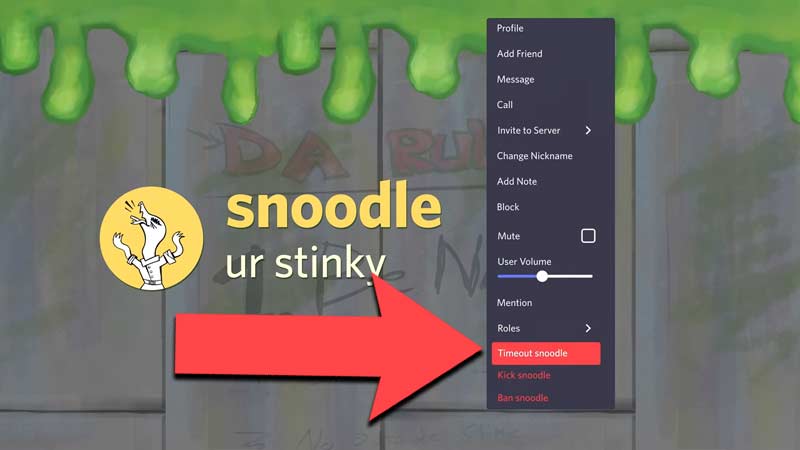
- A new Time Out menu will pop up now
- Select the time limit duration for the user
- You can select anywhere from 60 seconds, 5 minutes, 10 minutes, an hour, full-day, or even for the complete week
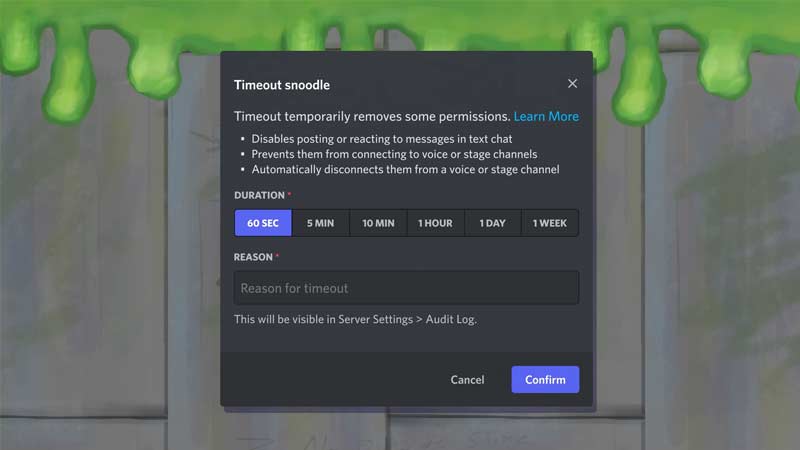
- You can also give a reason for a timeout in this menu
- This reason will be stored & visible in “Audit Log” inside “Server Settings”
- Now the timed-out user will show a new icon with a timestamp
- For other users without the ‘permissions’, the said user will appear normal
- To remove Timeout of a user is also easy
- On PC, right-click on the user’s name
- On Discord mobile, just hold on to the user avatar
- This will open their “Profile Context Menu”
- Now click on “Remove Timeout”
- Now click on “Confirm”
How to Fix the Discord Timeout Not Working?
As this is a relatively new feature in Discord, many users might face some issues in issuing the time out. One of the main reasons could be that the user you are issuing the timeout might already be the admin or a moderator with all the permissions enabled for them. So you can easily remove the admin or moderator role, then assign the timeout to them. This will fix and solve the Discord Timeout Feature not working issue for your server.
If this is not fixed and you are really having trouble with a specific user then there are workarounds. This must only be used if you can’t just ban or kick out the user, or you own a public server where the user can just join back. So all you have to do is create a role with all permissions disabled. Then go to advanced permissions and disable Send Messages & the option to Speak. Now you can assign this role to the user you want to give a timeout.
That’s everything you need to know about how to use the Discord Timeout Feature to time out users on PC & Mobile. While you are here, check out more of our Discord tips and tricks, to stay updated with all the new features.