Close Menu
    Facebook X (Twitter) Instagram
    Gamer TweakGamer Tweak
    • GT Originals
    • Guides
      • AC Mirage
      • Starfield
      • Wordle
      • Mobile
      • GTA 6
      • AC Valhalla
      • Genshin Impact
      • Honkai Star Rail
      • Minecraft
      • Discord
      • Street Fighter 6
      • Project Slayers
      • The Sims 4
      • Lies of P
      • Zelda TOTK
    • Roblox
      • Codes
      • Blox Fruits
      • Type Soul
      • Grow a Garden
      • 99 Nights in the Forest
    • Review
    • Codes
    • BG3
    • CS2
    Gamer TweakGamer Tweak
    Home > Steam Guides > Steam Deck Recovery Image
    Steam

    How To Restore SteamOS On Steam Deck (Recovery Image)

    Aniket MauryaBy Aniket MauryaJuly 26, 20232 Mins Read

    With the help of Steam Deck Recovery Image, players can easily re-image their SteamOS. But in this process, all the Steam Deck Data such as user info, installed games, applications, and OS will be deleted. Consider it as a complete factory reset and installation of a new SteamOS on this handheld. With that out of the way, here’s how you can  install the new SteamOS.

    How to Re-Image Steam Deck (Get Recovery Image)

    Follow the steps below to re-image your Steam Deck:

    • Head over to your Internet Browser and download Steam Deck Recovery Image.
    • After that, insert a USB Drive (minimum 8GB) into your device.
    • Now download any of the following utility software for your respective devices:
      • Rufus for Windows
      • Balena Etcher for MacOS and Linux.
    • You have to use the above software to write the Steam Deck Recovery Image to your USB Drive. Doing so will format your USB Drive.
    • Next, eject your USB Drive from the system and insert it into your Steam Deck handheld when it is switched off.
    • Now, press and hold the power button and volume down button simultaneously to enter the Boot Menu.
    • From there, select your ‘EFI XYZ USB Device’ from the list and wait for the system to boot up.
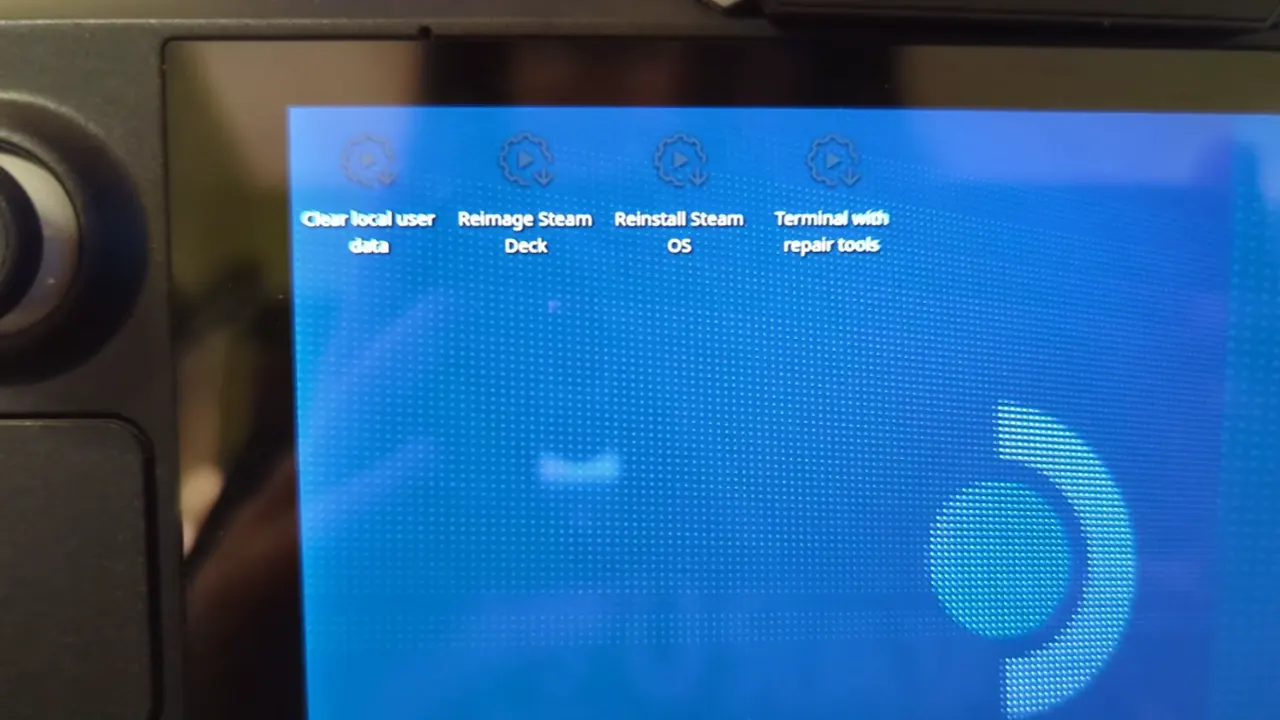
    How to Re-Image Steam Deck (Get Recovery Image)
    Image Source: Shane Craig
    • Once Steam Deck booted, select the Re-Image Steam Deck option and Proceed.
    • Wait for the system to format and restore the SteamOS on your Steam Deck.

    You have now successfully used the Recovery image to format and reinstall the SteamOS. Besides Re-imaging, you have other options such as Clear local user data, Reinstall Steam OS, & Recovery tools. Here, re-imaging Steam OS is better than reinstalling it. That’s because the first option will clear all the bad entries from the system and give you a fresh experience.

    That’s all for installing Steam Deck Recovery Image by Re-imaging. For more such informative content, make sure to check out our Steam Deck section. We have a bunch of such helpful guides stacked up there.
    Steam Deck Steam Guides Tips and Tricks
    Share. Facebook Twitter Pinterest LinkedIn Tumblr Email Reddit
    Aniket Maurya

    Hops between Sports and Action RPG games frequently. Can play the Arkham series tirelessly. Currently invested in exploring FPS and Open-World games.

    Related Posts

    How to Get the Maelstrom Mutation in Grow a Garden

    August 28, 2025

    How to Get the Seedling Pet in Grow a Garden

    August 28, 2025

    Easiest Grow a Garden Candy Apple Recipes

    August 16, 2025

    Best Grow a Garden Smoothie Recipes

    August 14, 2025
    Latest Codes

    Grow Anything Codes (November 2025)

    November 7, 2025

    Pixel Blade Codes (November 2025)

    November 7, 2025

    Anime Fight Codes (November 2025)

    November 4, 2025

    Monkey Climb Codes (October 2025)

    October 24, 2025

    Pixel Quest Codes (October 2025)

    October 24, 2025

    Parasite.exe Codes (October 2025)

    October 24, 2025
    Trending
    • What is Delta Executor for 99 Nights in the Forest?
    • How to Get Pet Mutation Shard Oxpecker in Grow a Garden
    • How to Get the Hammer in 99 Nights in the Forest
    • How to Get the Trinity Fruit in Grow a Garden
    © 2025 Gamertweak.
    • Advertise With Us
    • About Us
    • Team
    • Contact Us
    • Privacy Policy
    • Terms
    • Open Critic

    Type above and press Enter to search. Press Esc to cancel.