Coordinates are useful tools in Minecraft as they help you pin-point your exact position in the game. it also helps you teleport to other locations by entering the exact coordinates to the place you want to be teleported to. On most occasions, you might notice that you can’t see co-ordinates on your screen in Minecraft. In this article, we will show you how to show coordinates in Minecraft.
How to Show Coordinates in Minecraft
As mentioned earlier, coordinates in Minecraft are useful in determining the location of a player. The format for coordinates in the game is x y z.
- x stands for the players distance with respect to the east and west (also known as positive and negative or left and right) direction of the origin point.
- y indicates the height or depth the player is at. This is indicated by numbers that range from 0 – 255, where 64 indicates sea level.
- z mentions the direction of players with respect to south and north of the origin point.
While initially confusing to understand, coordinates are quite easy to grasp once enabled. Check out the steps to enable coordinates in the various editions of Minecraft below:
How to View Coordinates in Bedrock Edition or Windows 10?
- To enable coordinates in the Bedrock Edition of Minecraft, you will first have to create a new game.
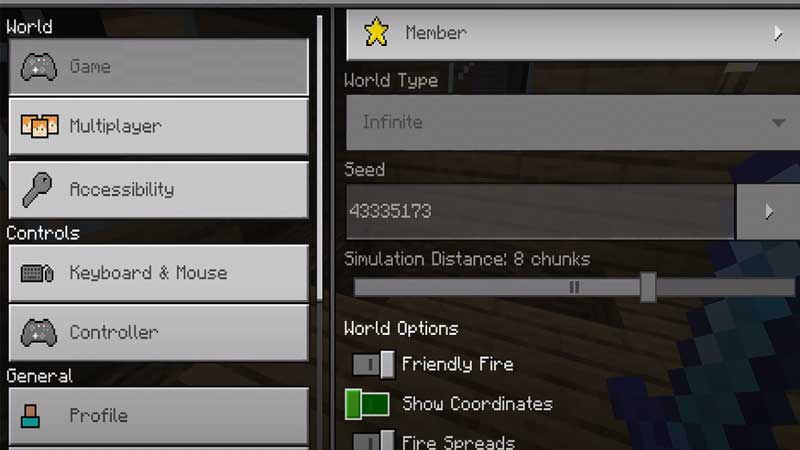
- While creating a new game, you will need to head to the ”World Options” button.
- Under the World Options button, you will find the ”Show Coordinates” option.
- Switch the toggle to On. This button will always be set to Off by default, which is why you need to enable it every time you start a new game.
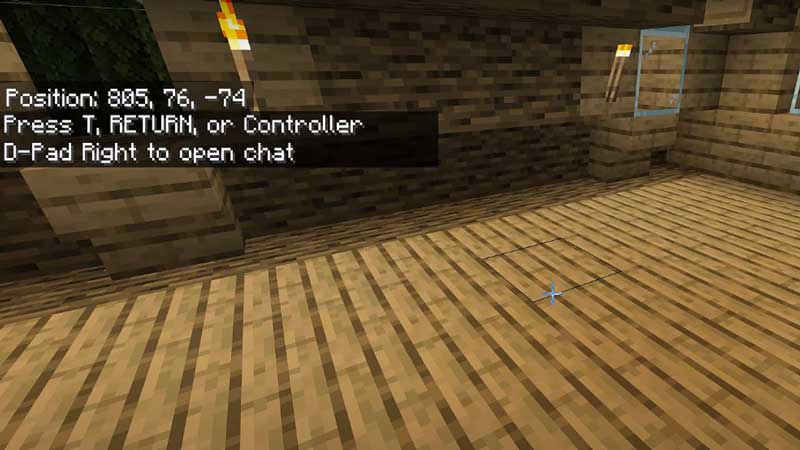
- You will now be able to view the coordinates once you start a game. The coordinates will appear on the top left of your screen and will look like this:
- Alternatively, you can use the /gamerule showcoordinates true command to enable coordinates in the Bedrock Edition of Minecraft.
With these steps, you can now enable coordinates in the Bedrock Edition of Minecraft.
How to See coordinates in Java Edition?
- Displaying coordinates in the Java Edition of Minecraft is a little complex when compared to its Bedrock Edition cousin.
- You can enable coordinates in this edition of the game by pressing the F3 key on a PC.
- If you’re playing this game on a Mac, you will have to press Fn + F3. Alternatively, you can try Alt + Fn + F3.
- Upon pressing these keys, you will see a large number of text boxes pop up on your screen.
- These boxes will display a variety of information, right from information about your PC to server information.
- Of these many boxes, one of them on the left side of your screen will feature coordinates.
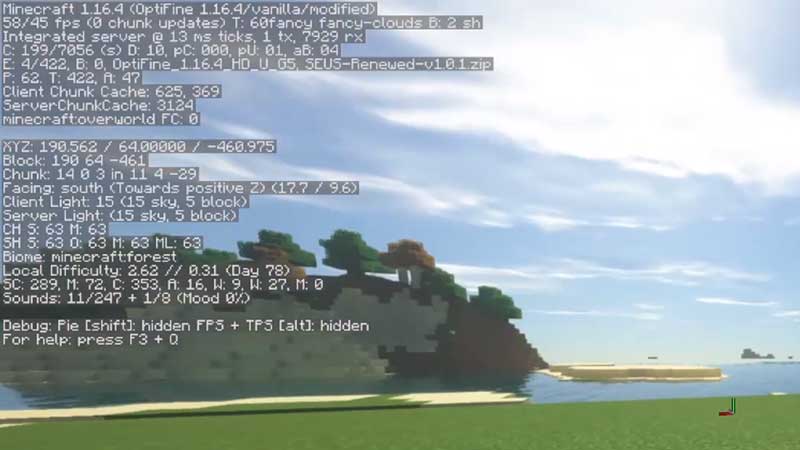
- This method of enabling coordinates in the Java Edition of Minecraft can be quite distracting and obtrusive because of the number of text boxes displayed on your screen.
- You can get around this issue by using mods like Xaero’s Minimap. This mod displays a tiny map along with the coordinates box on your screen.
- Using such mods will help you achieve a cleaner, less distracting experience while playing Minecraft.
- You can use these steps or mods to enable coordinates in the Java Edition of Minecraft.
This brings us to the end of this article. As you can see, with a few simple tips and tricks, you can enable coordinates in both the Bedrock as well as Java Editions of Minecraft quite easily.
Now that you know how to enable coordinates, check out this guide on how to teleport to coordinates in Minecraft using TP commands.