The save system of Pikmin 4 has been confusing for many new players. Everyone wants to save progress in the middle of the exploration and sometimes hunt. Now, you can have several reasons to pause and play from the point you left, but the question that arises is if it’s possible or not. What exactly is the game’s automatic and manual saving system? And if there is a way to overwrite and delete saved files. All such questions have been answered in this guide, so read along.
How to Save and Delete Progress in Pikmin 4
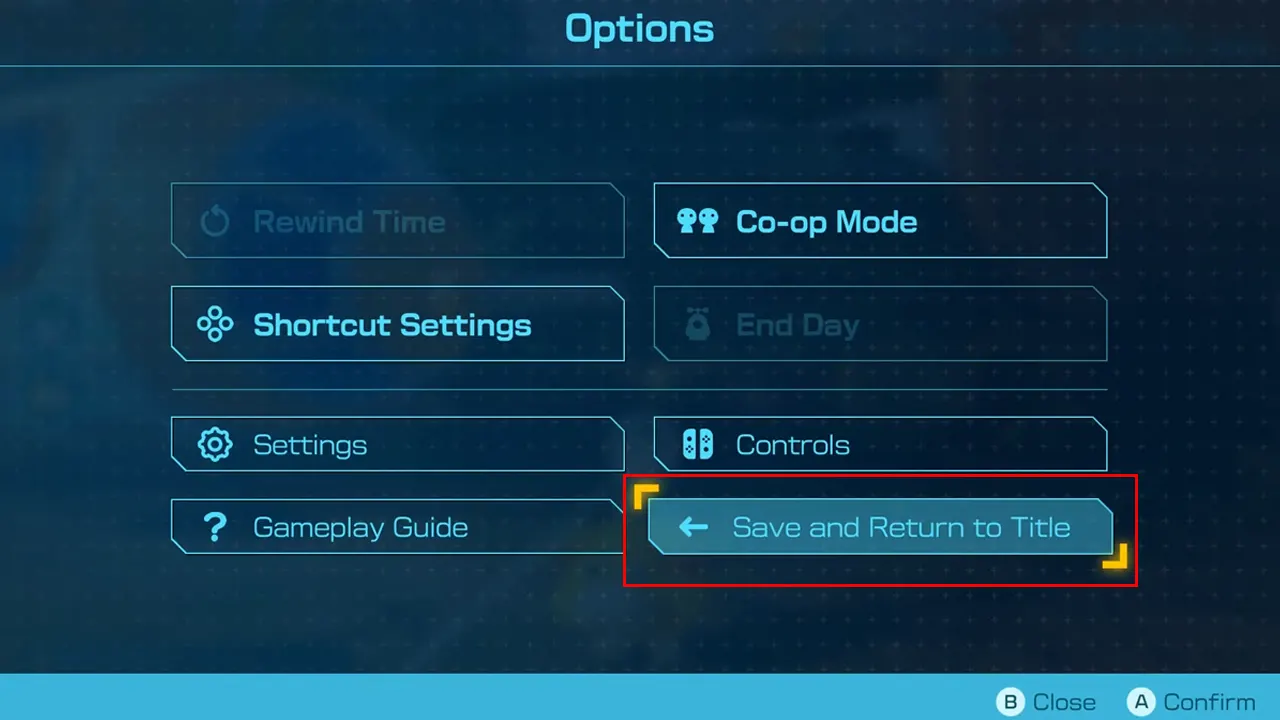
In Pikmin 4 progress can be saved both automatically and manually, but there are some conditions for both methods. Automatic saving happens at the start and end of the day, when you enter or exit a cave, when you level up, and after a purchase. These are what you would call autosave points that apply to the selected Rescue File. And you will see a P icon with Saving in the upper left corner whenever Pikmin 4 automatically saves. There are three Rescue File slots in the save option, and you can even use Copy to duplicate any file, in case you don’t want the autosaved one. To use this manual save feature, you have to follow these steps.
- You can only use manual save at the Rescue Command Post, so head there.
- Once you are there press the “–” button to open the Options menu.
- Then select the Save and Return to Title option. If you go into Options anywhere other than Rescue Command Post, you will see Return to Title Screen, which will not save the Pikmin 4 progress.
- After you have selected the option, you will see three Rescue File slots.
- Select the empty one to save a new file or choose the occupied one to overwrite the progress file. If you are trying to overwrite the saved file, the system will ask to confirm the overwrite, in case you chose it by mistake.
- Lastly, if you want to delete any saved files, select the Rescue File and press the X button. Then confirm the choice by selecting “Delete” and pressing the A button.
This is all you have to do to delete, duplicate, overwrite, and create a save file in Pikmin 4. There is so much that players can do in this game, from fighting bosses to creating Pikmin and adding Onion to scouting with Drones. So if you are interested in such topics, you should check our Pikmin 4 guides.