Instagram app crashing on your iPhone or Android phone? It can be frustrating if you use it for hours daily and you can’t upload pictures, stories, reels, send DMs, or do anything because the app keeps closing. If Instagram crashes are frequent on your device, know that this could happen due to multiple reasons and we will take a look at all the possible causes and solutions in this guide.
How to Fix Instagram App Crashing Issue?
Before the actual solutions, you can try these small fixes that can be useful to clear potential problems and other aspects that might be causing the app to crash.
- You can try to restart Instagram by first completely, exiting the app, even from the background, then launching it again.
- Next is to make sure you have the latest version of Instagram installed on your device. You can head to the Google Play Store or App Store for iPhone to check for updates.
Clear Cache Data
This is the best way to fix the Instagram app crashing problem. You can clear the cache data that might be causing the crash.
How to Clear Instagram Cache Data on Android
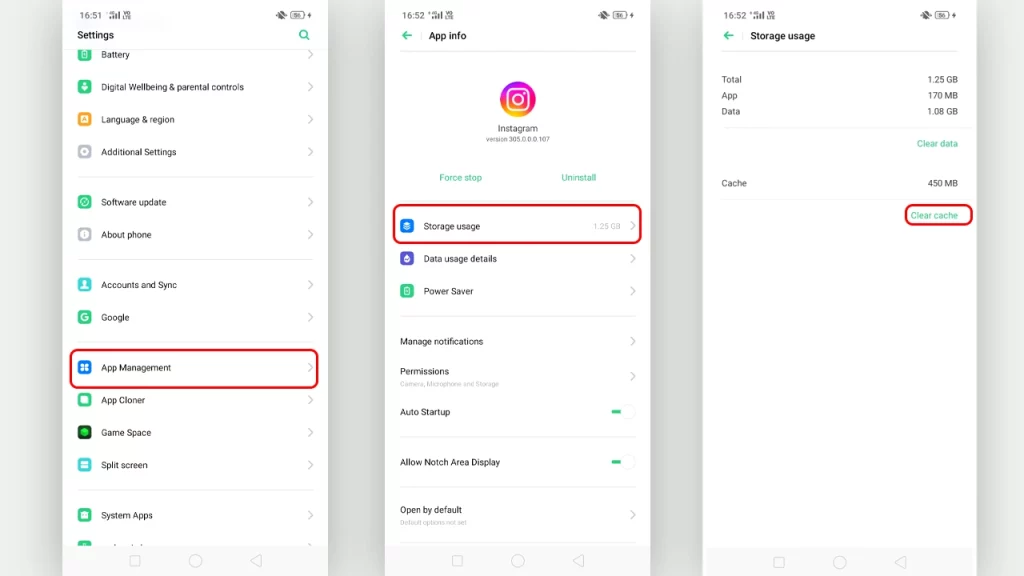
Although the process can differ depending on the phone’s UI and manufacturer, it’s more or less similar.
- Go to Settings on your device.
- Look for Apps from the list and then click on it.
- Now click on App Management, and look for Instagram in the list (alternatively, you can search Instagram in the settings tab).
- Once found, click on storage usage, then click on clear cache data.
Now, you can relaunch the app and check if the problem is solved.
How to Clear Instagram Cache on iOS (iPhone)?
While there isn’t any way to clear the cache data on Apple devices, you can offload the app, which works a similar way.
- First, head to the Settings on your iPhone.
- Then, click on General tab and then select iPhone Storage.
- Look for Instagram from the list of apps and click on it.
- Now click on the Offload App option.
- Once done, click on Delete App.
Now you can head to the Apple App Store and download Instagram again.
Check Device Storage
Storage can be one of the reasons that could lead to the case of the Instagram app crashing. If the device doesn’t have enough space to store data, the app can crash and not run as it should. Hence, make sure you are not running low on storage, you can head to the phone settings and search for the storage menu to check about its consumption. You can clear some space by deleting the unused apps.
Leave the Instagram Beta Program
The Beta programs of a certain app are the versions of the app that are released for some users to try and test features before complete release. Beta apps are sometimes buggy and unstable due to still being in the work-in-progress stage due to.
If you have opted for the Beta program for Instagram, you are likely to get the beta version of the app with each update. Hence, you are facing Instagram app crashing problem. Below are the steps you can follow to leave this beta program on Android and iOS.
How to Leave Instagram Beta Program on Android
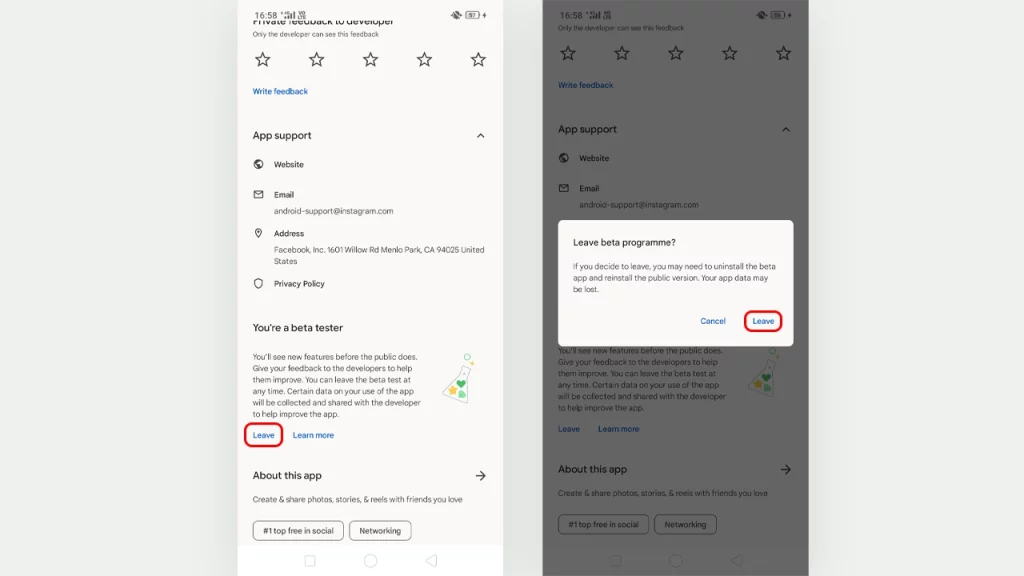
- Head to the Google Play Store on your device.
- Search for Instagram.
- Click on it and scroll to find the beta section, stating ‘You’re a beta tester‘.
- There click on leave.
- Click on leave again for the prompt window.
- Now proceed to uninstall the app and reinstall it again.
How to Leave Instagram Beta Program on iOS
- On your iPhone device, head to the Testflight app, and from there you can leave the Instagram Beta program. Once done, you can download the normal stable version from the App Store.
If none of the methods work for you, and you find more users facing the problem, then there might be a problem with Instagram itself. In such cases, you can contact the Support team and wait for them to solve the issue.
That’s everything you need to know on how to fix Instagram app crashing on Android & iOS phones. If you find this guide helpful, you can check out our articles on about the Best matching Anime PFP for Couples for Instagram. Moreover, you can head to our Tech dedicated section for more such helpful content.