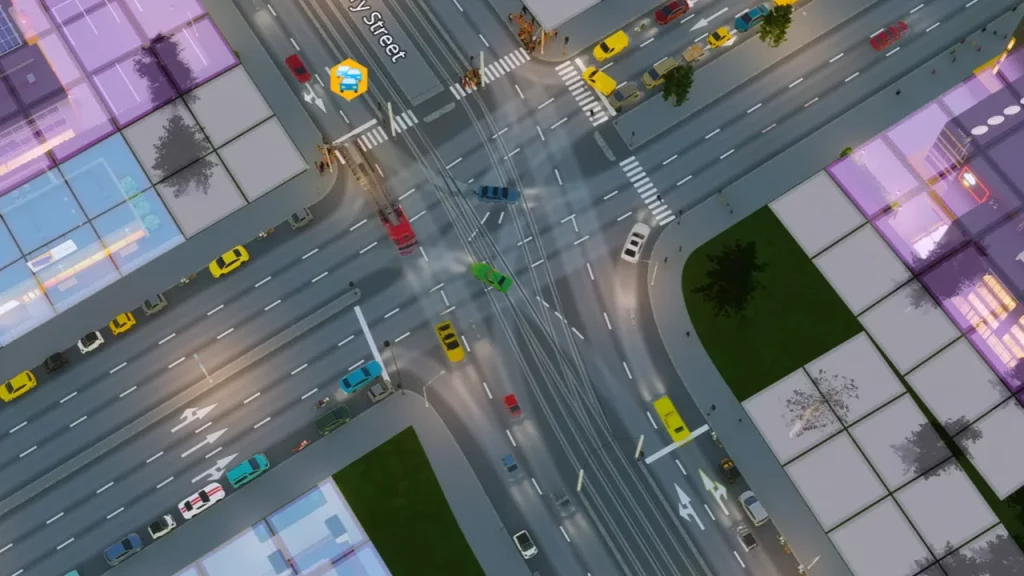
If you are encountering the Cities Skylines 2 Launcher error, you might be unable to launch the game or the launcher. As soon as the players launch the game, they are prompted with an error message stating, “General Error. We are unable to parse the launcher settings file. Settings.formatVersion should be integer. Settings.formatVersion should be equal to constant. Make sure you have a valid configuration and try again“.
Despite reinstalling the entire game, players are still facing the Cities Skylines 2 not launching issue. Although there can be many reasons for this error, we have compiled some workarounds to resolve this issue. So, check out our guide on how to fix the launcher settings error.
How to Fix Cities Skylines 2 Launcher Error
Unfortunately, the Cities Skylines 2 launcher settings error and not launching issue haven’t been acknowledged by Paradox Interactive or Colossal Order as of now. However, you can try out the below workarounds to fix the launcher settings error:
Close the Paradox Launcher
As it worked out for some players, you can exit the Paradox Launcher from the hidden icons in the Taskbar to resolve this error. You can also close the launcher by using the Task Manager.
- For that, press the Alt + Shift + Esc buttons at once.
- Select the Paradox Launcher from the running tasks.
- Then, press the End task button to close the launcher.
Repair Launcher File
This workaround was suggested by one of the players in the SteamCommunity which resolved the issue for many players.
- Head to the main directory where the game is installed. Its default file path is as follows:
- Local Disk> Program Files > steamapps > common > Cities Skylines II > Launcher
- Run the launcher-installer-windows_2023.11.msi file.
- Then, select the repair option and wait for some time.
- Lastly, launch the game and check if the issue persists.
Change the Launcher Settings File
- Head to the main folder where the Cities Skyline 2 is installed.
- Search and navigate to the launcher-settings.json file.
- Then, select and open the file with Notepad.
- Edit and change the variable for formatVersion in the text.
- Change the variable from 0 to 1.1 and save the file.
- Lastly, launch Cities Skyline 2 to check if the launcher settings error persists.
Contact Paradox Interactive
However, you can contact Paradox Interactive Support if none of the above workarounds resolve the issue for you. Over there, press the Open Ticket tab to submit a request via tickets under the Help Desk. Then, wait for some time for the Support team to revert you with a suitable workaround. Furthermore, you can check out their official Twitter account for the latest updates.
That’s all about how to fix the Cities Skylines 2 Launcher error. If you found this guide helpful, check out our guides to find out how to make highways, how to remove and manage garbage, and explore more Cities Skylines 2 Guides in our dedicated section right here on Gamer Tweak.