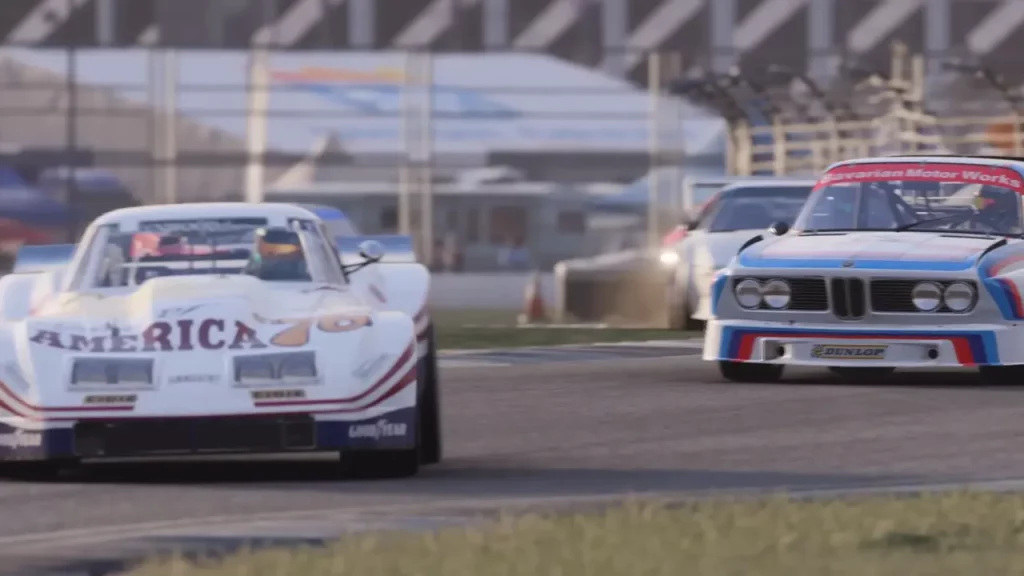
Players are having it pretty hard with Forza Motorsport Crashing Or Not Launching. If this issue has gotten you wondering if there is a fix, you should know that there is known yet. There are a few known issues with Forza Motorsport on PC and this one is the most common one. While the devs look to fix it, the official Support has provided numerous troubleshooting tips that could potentially fix the issue for you. So if you want this problem solved and want to get back to playing the all new Forza Motorsport 8, here’s all you need.
Forza Motorsport Crashing Or Not Launching Troubleshooting Tips
Update GPU Drivers
GPU Drivers are one of the main components of PC gaming and must be kept updated constantly. If your GPU drivers aren’t updated, you will likely face the Forza Motorsport Crashing Or Not Launching issue. To fix it, simply head to the website of your GPU driver to check and download updates. Nvidia users can click here, and AMD users can follow this link.
Update Microsoft Windows
Make sure that your Windows is updated and that you have not missed any new updates. Since it can lead to different types of errors in Forza Motorsport 8, you will have to follow the steps below:
- Click on your Start Menu and then click on Settings.
- In the new window, you need to look for Update and Security.
- Now to update windows, click on the button that says Check For Updates.
- If there are updates pending, the display screen will show you the option to Update Windows.
Update DirectX & C++ Redistributable
This is one of the first things you must do if you encounter the error. Since the error is DirectX related, you will have to make sure that your set up is running the latest DirectX and C++ Redistributable. But before you download the latest ones, make sure you delete the old C++ programs to make sure you have the updated ones.
- Press the Windows Key + R, and then run the appwiz.cpl command.
- Locate the Microsoft Visual C++ programs in the list.
- Make sure you select each entry and then click Uninstall.
- You are now free to reinstall the new files.
Allow Forza Motorsport on Windows Defender Firewall
Your Windows Defender Firewall settings might be blocking some necessary files and this might cause the Forza Motorsport Crashing Or Not Launching. Here’s how you can add it to the Exception list:
- Open the Firewall & Network Protection from your Windows Security.
- Locate and click Allow an app through Firewall.
- Look for the Forza Motorsport files in the list.
- If you can’t find it, follow these steps –
- Click on Change Settings.
- Click on Add Another App.
- Browse for your Forza Motorsport Files and then Add the game to the Exception list.
- Once you add the game to the Exception list, it should not have any problem with Windows Defender.
Reset Microsoft Store
One of the important steps that Forza Motorsport support suggests is to reset the Microsoft Store before installing the game. This clears any kind of cache files and refreshes library permissions from the application. Here’s what you need to do:
- Press Windows + R on your keyboard and then run the wsreset.exe command.
- Once you press Ok, Windows will refresh the Microsoft Store in the background.
- After a brief black screen, the Microsoft Store will open and you can now try installing Forza Motorsport.
Additional Troubleshooting Tips
- Before you start, search Task Manager on PC and then end any other tasks that might be consuming too much of your CPU.
- Run the game as Administrator and you might fix the Forza Motorsport Crashing Or Not Launching issues.
- Simply Boot your PC before trying to start the game.
- While these troubleshooting tips generally fix the issue, Forza Support have mentioned a few more that might be needful if your case is a unique one. We recommend you check them out. Also, you should not hesitate contacting Forza Support regarding any such troubles.
Hopefully, you can get back to playing Forza Motorsport 8 in no time. If you found this guide useful, do check out our Forza Motorsport dedicated section for more such guides here at Gamer Tweak.