At release, the developers had already informed us that Cities Skylines 2 would need heavier graphics and processing. Having said that, it’s obvious why most of us are facing the Cities Skylines 2 crashing, stuttering, or freezing issue. There could be other reasons behind any of these issues, however, this one seems to be the most obvious cause with the devs working behind the scenes.
Our guide has provided all the troubleshooting tips that might be useful and you can pair them with the best Graphics Settings. However, no way does that assure that your troubles will now be gone. Hopefully, whatever the developers do will solve the issue for us after a few patches and updates. In the meanwhile, here’s all you can do.
How to Fix Cities Skylines 2 Crashing, Stuttering, or Freezing Errors
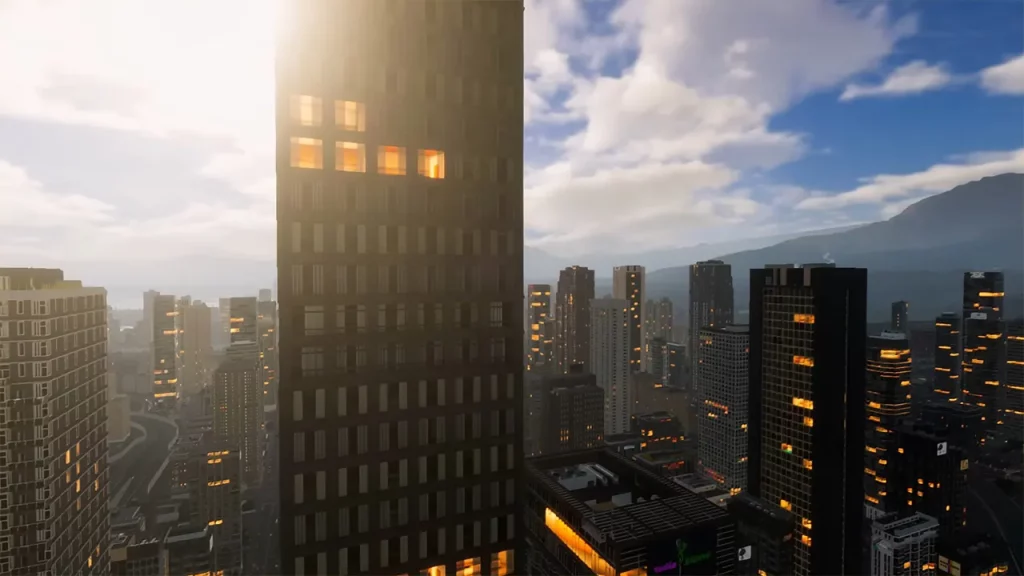
There could be multiple reasons behind Cities Skylines 2 crashing and while there is no permanent fix to it, a few troubleshooting tips might turn out to be handy. However, do make sure that you meet the game requirements since it is already heavy on even the fastest graphic drivers.
Update GPU Drivers
GPU Drivers are one of the main components of PC gaming and must be kept updated constantly. If your GPU drivers aren’t updated, you will likely face the crashing, freezing, and stuttering issue in the game. To fix it, simply head to the website of your GPU driver to check and download updates. Nvidia users can click here, and AMD users can follow this link.
Update Microsoft Windows
Make sure that your Windows is updated and that you have not missed any new updates. Since it can lead to different types of errors in Cities Skylines 2, you will have to follow the steps below:
- Click on your Start Menu and then click on Settings.
- In the new window, you need to look for Update and Security.
- Now to update windows, click on the button that says Check For Updates.
- If there are updates pending, the display screen will show you the option to Update Windows.
Allow Cities Skylines 2 on Windows Defender Firewall
Your Windows Defender Firewall settings might be blocking some necessary files and this might cause the Cities Skylines 2 Crashing issue. Here’s how you can add it to the Exception list:
- Open the Firewall & Network Protection from your Windows Security.
- Locate and click Allow an app through Firewall.
- Look for the Cities Skylines 2 files in the list.
- If you can’t find it, follow these steps –
- Click on Change Settings.
- Click on Add Another App.
- Browse for your Cities Skylines 2 Files and then Add the game to the Exception list.
- Once you add the game to the Exception list, it should not have any problem with Windows Defender.
Additional Cities Skylines 2 Troubleshooting Tips
- Before you start, search Task Manager on PC and then end any other tasks that might be consuming too much of your CPU.
- Run the game as Administrator and you might run Cities Skylines 2 without many troubles.
- Simply Boot your PC before trying to start the game.
- Although the Cities Skylines 2 Crashing, Stuttering, or Freezing issues will only be fixed by a permanent patch from the devs, these troubleshooting tips should do the job in the meanwhile.
- Also, you should definitely Contact Support and report such issues so that the devs can fix the game earlier.
Hopefully, you can get back to playing Cities Skylines 2 in no time. If you found this guide useful, do check out our Cities Skylines 2 dedicated section for more such guides here at Gamer Tweak.