Many gamers have been wondering how they can connect PS4 controller to Steam on a PC. Steam users might want to navigate the various features and content this platform offers without being restricted to a mouse and keyboard. Furthermore, this connection can be done in two ways: through Bluetooth (wireless) or through a USB cable. Here’s how you can quickly complete both of these processes and experience a comfortable console-like experience while playing Steam games.
How to Connect PS4 Controller to Steam on PC
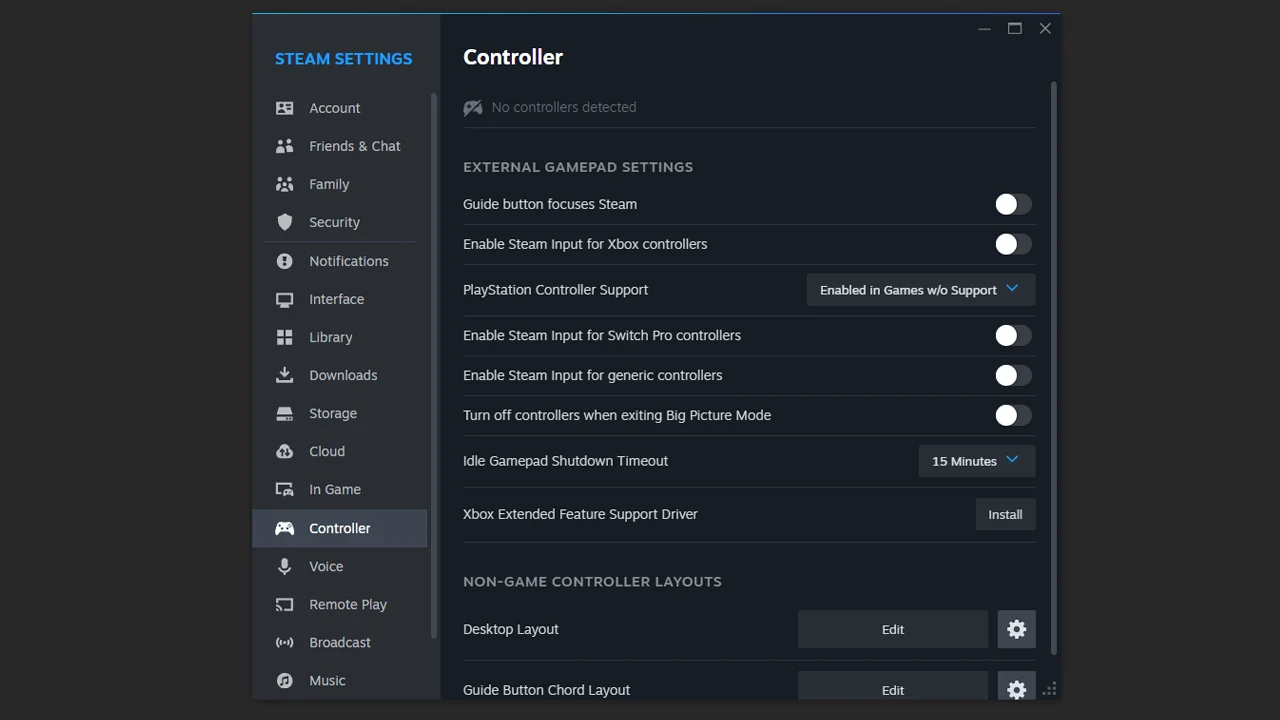
Before you choose to either connect your PS4 controller wirelessly or through a USB cable, you will first have to adjust the settings in Steam so that this platform is able to recognize your controller. Here’s how you can do this:
- Launch Steam on your PC.
- Click on the ‘Steam‘ option that appears towards the top left corner of the screen.
- From the menu, select the ‘Settings‘ option.
- Now, select ‘Controller‘ from the list of Steam settings.
- On the right-hand side, you will see the option, ‘PlayStation Controller Support.’ Interact with this option and make sure that you have selected ‘Enabled in Games w/o Support.‘
- Additionally, to avoid any future issues while using your PS4 controller, disable all the other controller-related settings (optional).
After you have adjusted the Steam settings, you can learn how to connect your PS4 controller to your PC:
Connecting PS4 Controller to PC using Bluetooth
- Click on ‘Start‘ and select the ‘Settings‘ option.
- From the menu, open the ‘Devices‘ setting.
- Now, click on ‘Bluetooth & other devices.’
- Select the ‘Add Bluetooth or other device‘ option, and then click on ‘Bluetooth.‘
- Move over to your PS4 controller. Now, hold down the PS button and the Share/Create button simultaneously, until your controller begins blinking with blue lights.
- After a few seconds, the PC will detect your controller and you will see the ‘Wireless Controller‘ option under ‘Add a device.’ Click on it to pair your PS4 controller to your PC via Bluetooth.
Also Read: How to Update Steam Client
Connecting PS4 Controller to PC using USB Cable
Using a USB cable will be slightly better than the Bluetooth option, as the direct connection prevents any connectivity issues and the performance is considerably better. Here’s how you can complete this process:
- Firstly, attach the micro-USB end of the USB cable to your PS4 controller, and the USB-A end should be connected to a USB port on your PC.
- Your PC will make a sound and this means the connection was successful.
If you have followed the process we mentioned before, and have already enabled the PS4 controller settings in Steam, as soon as you connect your controller either via Bluetooth or USB cable to your PC, the platform will immediately identify this connection.
That’s all you need to know if you want to use your PS4 controller on Steam to play your favorite games. If you found this guide helpful, find out how you can connect a PS5 controller to Steam Deck and learn how you can view hidden games on Steam.