Knowing the best settings for The Cycle Frontier can change how you play the game. The game takes you to an alien world so you can expect to see some extravagant landscapes and creatures. But while that does add to its beauty this game is also PvPvE, hence you will need a good performance to outplay your enemies. So in order to experience both here are the best graphics settings for The Cycle: Frontier to help boost your FPS and performance.
Best Graphics Settings for The Cycle Frontier
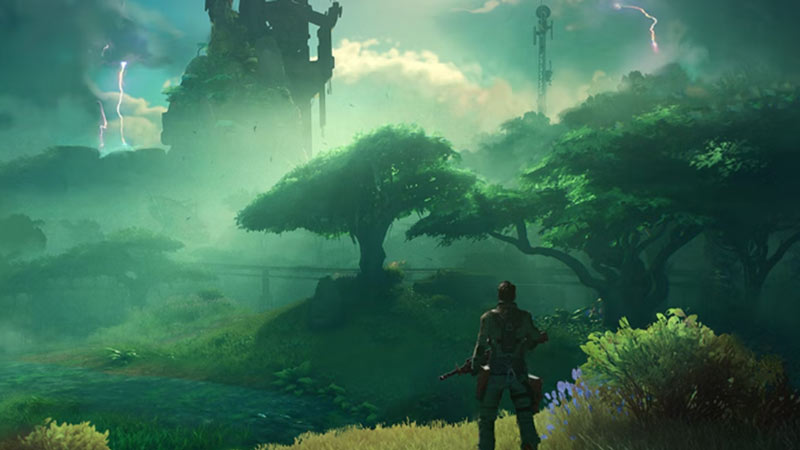
Here are the settings that should give you the best graphics and visual experience while maintaining a good performance. The settings given below won’t need you to have the latest gaming setup. And it should even help if you are using a system that is only a few years old. Just remember if you have a somewhat outdated system then the below settings might not be super helpful. Now let us check the settings:
- Video
- Selected Rendering Device: Select your Graphics card
- Display mode: Fullscreen
- Resolution: The same as your Monitor’s resolution or your laptop screen. If you have an older laptop or a computer then you can keep it something lower like 1280 x 720 or 1366 x 768. These are quite low resolutions so expect your game to look slightly pixelated and not the most visually appealing. But they can definitely give you a performance boost.
- DLSS: Off
- Image Sharpening: 0
- Max FPS: Keep it one level above your display’s refresh rate. For example, if your refresh rate is 60 keep it at 90.
- FOV: You could lower it to improve your FPS but it will hinder your view. So keep it as per your preference, as having slightly better performance is no good if you can’t even see your enemies.
- Gamma: It controls the brightness. You can keep it anything as it won’t affect your performance much.
- Video Quality Options
- Auto Detect: Off
- Video Quality: Custom
- Draw Distance: Medium
- Shadow Quality: Low
- Post Process Quality: Low
- Texture Quality: Low or Medium
- Visual Effects Quality: Low
- Foliage Quality: Low
- Advanced Options
- Vsync: Off
- Enable DX12: Off. You should enable it if your system supports Direct X 12 though.
- Enable Motion Blur: Off
- Show FPS: Off (You can turn it on if you want to monitor your FPS)
- Enable Multi Threaded Rendering: On
- Enable GPU Crash Debugging: Off
Best Settings for High-end Systems
If you have a system that is very high-end or is at least recent with the gaming standards then use the following settings.
- Video
- Selected Rendering Device: Select your Graphics card
- Display mode: Fullscreen
- Resolution: The same as your Monitor’s resolution or your laptop screen.
- DLSS: Quality or Ultra Quality
- Image Sharpening: Max
- Max FPS: 240 or Unlimited
- FOV: 100
- Gamma: It controls the brightness. Keep it as per your preference.
- Video Quality Options
- Auto Detect: Off
- Video Quality: High or Epic
- Draw Distance: High or Epic
- Shadow Quality: High or Epic
- Post Process Quality: High or Epic
- Texture Quality: High or Epic
- Visual Effects Quality: High or Epic
- Foliage Quality: High or Epic
- Advanced Options
- Vsync: On
- Enable DX12: On
- Enable Motion Blur: On
- Show FPS: Off (You can turn it on if you want to monitor your FPS)
- Enable Multi Threaded Rendering: On
- Enable GPU Crash Debugging: On
Lastly, if your system falls in-between high and low-end devices. Then it would be best if you tried playing around with all the settings to see what best fits for you.
That covers this guide on the best graphics settings for The Cycle: Frontier to boost your FPS & Performance. Since you enjoy playing this game you should find our guides useful on the best keybinds list and how to get toxic glands.