In a rare occurrence, players are experiencing an issue wherein their Steam voice chat is not working. While poor audio quality can be dealt with, being unable to communicate through voice chat can really bum you out.
As most of the games on Steam require proper communication, one can not really stay without talking to their teammates for a long time. So to help you with it, here are the solutions that can fix your Steam VC in minutes.
Solutions to Steam Voice Chat Not Working
Before we start with the fixes, we recommend you restart Steam and try rejoining the voice chat again. If it’s still not working after the restart, you can use these steps to get it working again:
Check the Audio Input and Output Device
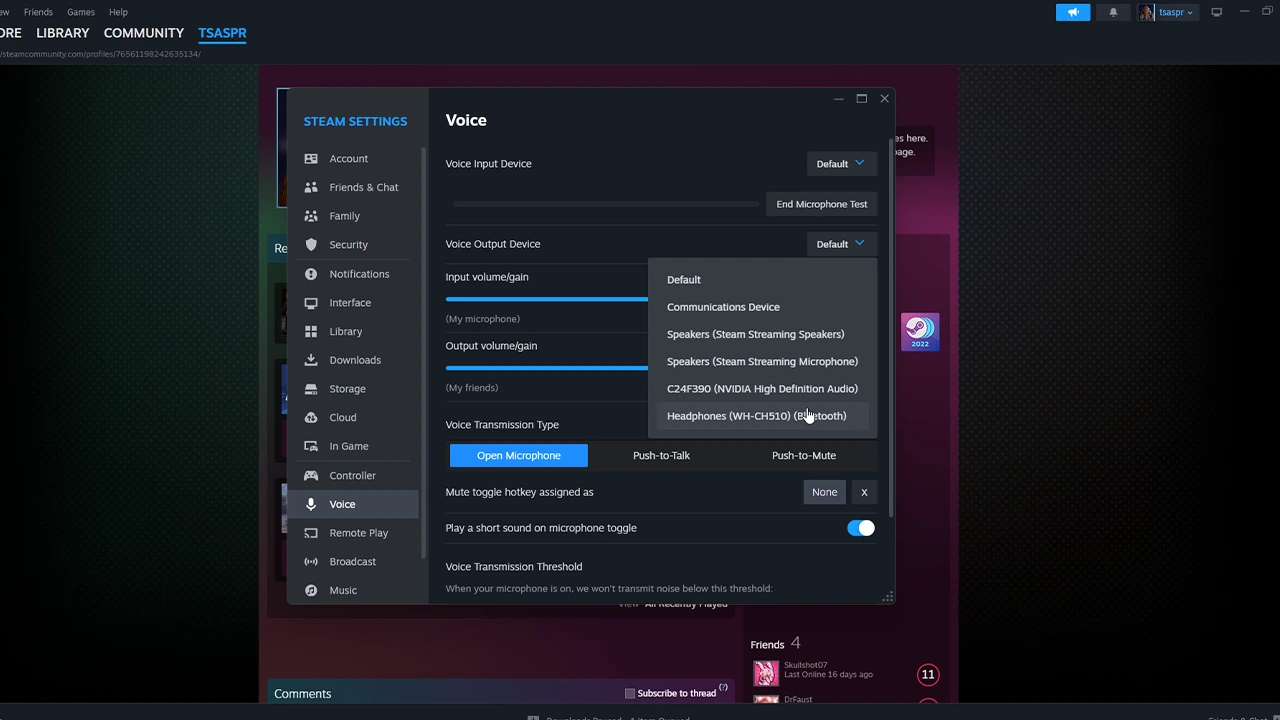
Having the wrong Audio Input and Output device selected is the most common reason why your Steam Voice Chat is not working. If you are using a Headphone, you must select it as your channel for voice communication. To do so, you can refer to the steps below:
- In Steam Settings, enter the Voice section.
- From there, you can select the Voice Input and Output Device of your choice.
- Just use the drop-down menu to select your paired device from the list.
Note: Do check if your audio devices such as Headphones or Microphones are selected on Windows as well. You can check this by going to Windows Settings > System > Sound. In the next window, you can choose a device for playing and recording (speaking) sound.
You will now be able to use the Steam Voice Chat again. By any chance, if this didn’t fix your issue then you can scroll down for other solutions.
Give Apps Access to Your Device
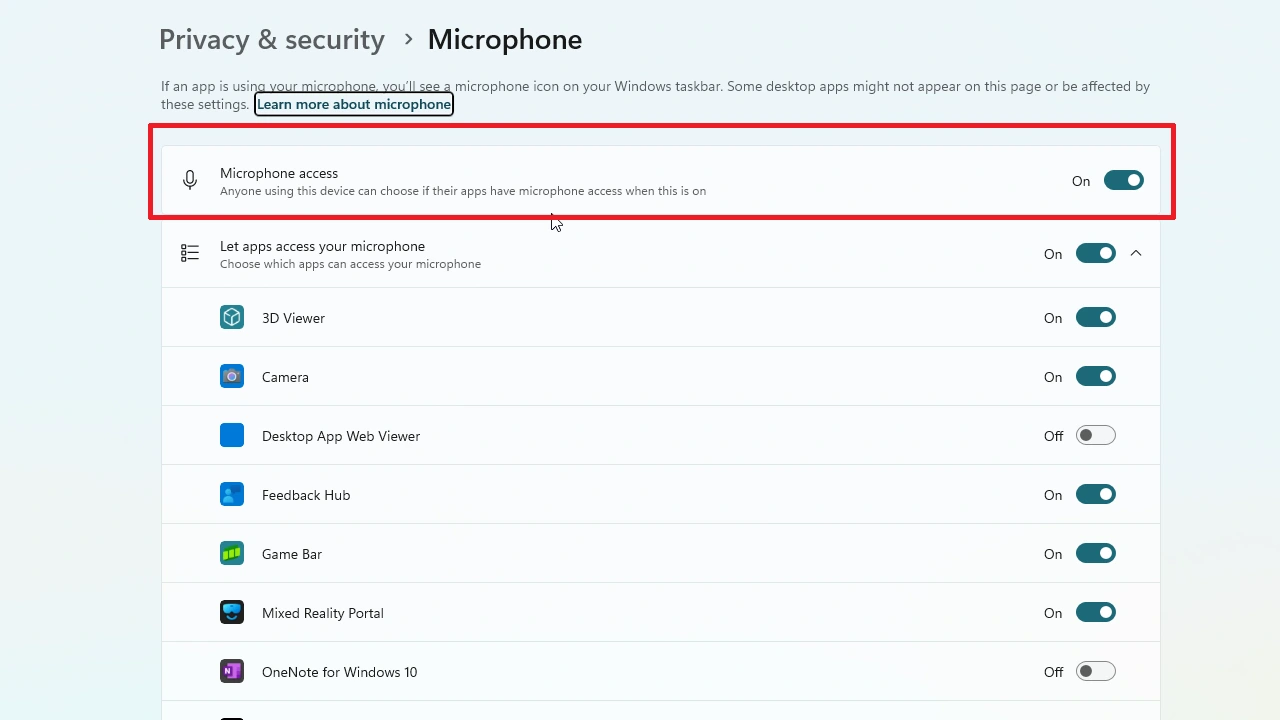
It’s clear as day that applications like Steam require permission to access your Microphone. Otherwise, you may not be able to talk on voice chat. To give other apps access to your Microphone, you can use these steps:
- Go to Windows Settings > Privacy & Security.
- Next, select Microphone from the App Permission section.
- Enable the Microphone Access to get the job done.
Your Steam Voice Chat will be fixed by doing the above thing.
Adjust Input/Output Volume
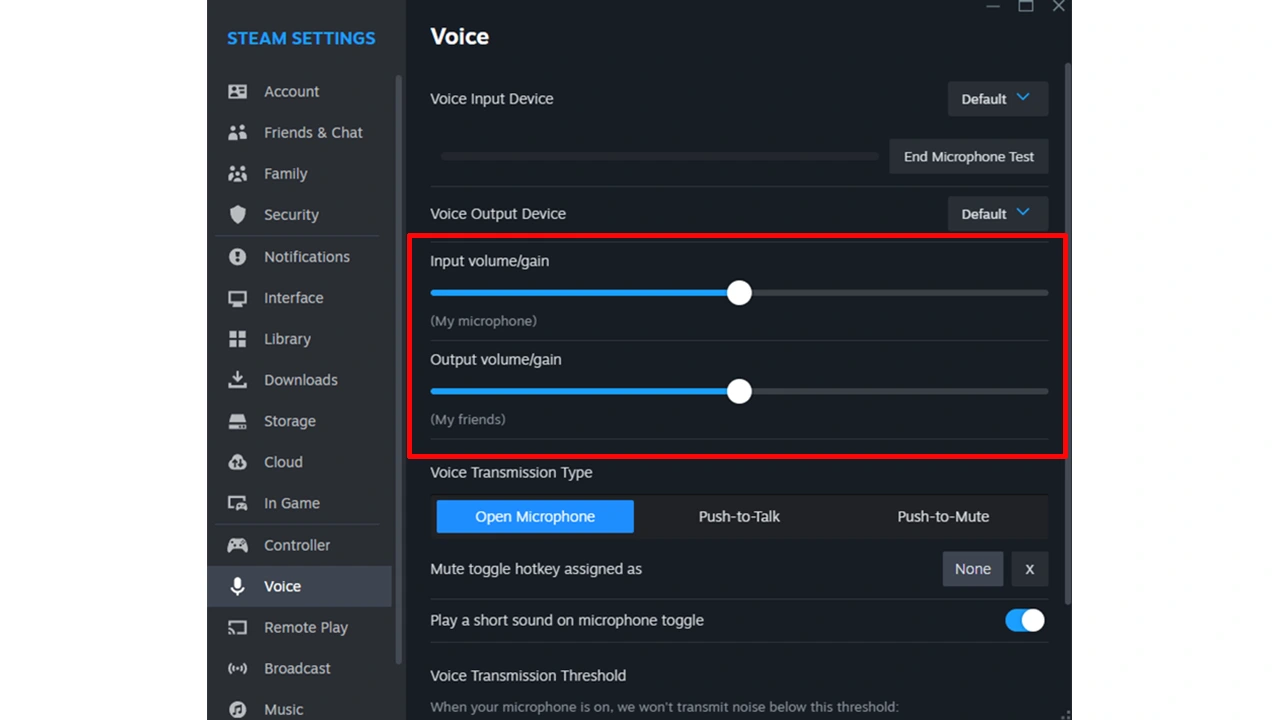
In Steam Settings, you can adjust the Input and Output Volume for proper communication. Simply go to Steam Settings > Voice and increase the Input Volume/gain and Output Volume/gain to get the job done. Make sure the volume is configured to a reasonable amount so you can hear your friend’s voice crystal clear.
Update Audio Drivers
As silly as this sounds, an outdated Audio Driver can really be the reason for Steam Voice not working. To fix this, you can right-click on Start and open Device Manager from there. Your next step will be selecting your Audio Driver, right-clicking on it, and then updating it.
These are all some effective ways to fix your Steam Voice Chat not working issue. If they don’t work, which is very unlikely, then we recommend switching to a different device. With that said, we would like to conclude this guide.
For more content related to Steam and the latest video games, be sure to stay connected with us.