Home > Roblox Guides > How To Clear Roblox Cache

How To Clear Roblox Cache (PC, Android & iOS)

Published Date :

Roblox is one of the most popular gaming platforms in the world. Whether you’ve been playing for years or have just started playing, it’s always fun to try out new Roblox experiences. However, your cache folder in Roblox will quickly cross its capacity and if that happens, you will encounter lags and low FPS while playing your favorite games on Roblox. The simple solution is to delete the Roblox cache whether you’re on your PC, Android or iOS. While the answer may seem simple, players don’t know how to do it. Don’t worry, this guide will show you how to clear your Roblox Cache.

How to Clear Roblox Cache on PC
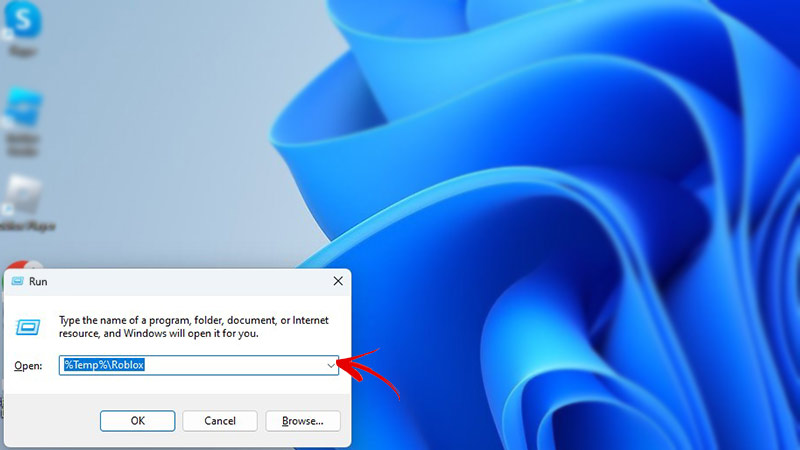
how to delete cache on roblox pc

If you are encountering lags while playing Roblox on PC, then you should immediately clear your Roblox Cache. Here is how to do it:

  1. Press Win + R to open the “Run” window.
  2. Now, type “%Temp%\Roblox” and hit enter.
  3. Once the Roblox folder opens, press “Ctrl + A” to select all files and then click the “Delete” button.

Doing this will wipe away all your Roblox cache on PC. But what if you want to be an iOS user? Keep reading below to know how to delete the cache.

How to Clear Roblox Cache on iOS

  1. Open the ‘Settings’ app on your iPhone
  2. Now, find the “Roblox” app from the list.
  3. Once found, tap on it and scroll below.
  4. You will now see an option that says, “Clear temp data on next start”.
  5. Toggle it on and then open the Roblox app.

You will now get rid of the cache and will be able to play Roblox smoothly on your iPhone.

How to Delete Roblox Cache on Android

If you are an Android user, here is what you need to do to clear the Roblox cache:

  1. Open the ‘Settings’ app on your Android device.
  2. Now, go to “Storage>Apps” and then search for Roblox.
  3. Once you find it, tap on the app and select the “Clear Cache” option.

That’s all you need to know about how to clear Roblox Cache on PC, Android and iOS. We hope that this guide was helpful. If a Roblox game is not loading up for you , then check out how to fix Roblox crashing on PC, Android and iOS.
  • +1 Speed Evolve Codes (July 2026)

    +1 Speed Evolve Codes (July 2026)

    Published Date :

    Speed-based games on Roblox will always stay popular, and this particular experience is quite addictive! Here, you play as an animal and your goal is to evolve into stronger animals, unlock new worlds, and be the fastest player on the server! +1 Speed Evolve codes offer free Speed and Win Boosts that can make your… Read More

  • Yeet a Brainrot Codes (July 2026)

    Yeet a Brainrot Codes (July 2026)

    Published Date :

    If you’re annoyed at the Brainrot trend, this is your opportunity to “yeet” them into the distance! To launch Brainrots farther, you need better pets, potions, and more rewards, and thankfully, these Yeet a Brainrot codes will come to the rescue. You can easily unlock various Divine Relic Chests, Primeval Relic Chests, Coin/Luck/Power potions, exclusive… Read More

  • Build A Soccer Squad Codes (July 2026)

    Build A Soccer Squad Codes (July 2026)

    Published Date :

    To build your dream team, you’ll need plenty of rerolls and shop refreshes, which is how you can get better cards and complete your collection. Build A Soccer Squad codes can help with exactly that, giving you various freebies so you get more chances to improve your lineup without waiting. Here’s the complete list of… Read More

  • Aura Monster Simulator Codes (July 2026)

    Aura Monster Simulator Codes (July 2026)

    Published Date :

    Climbing an endless staircase might sound simple at first, but the higher you go, the more Aura you’ll need to keep progressing and unlock stronger upgrades. Thankfully, Aura Monster Simulator codes provide free Gems and Aura Boosts, helping you strengthen your character and reach new heights. More specifically, you can use these Gems to unlock… Read More