If you are facing the Starfield PS5 controller not working on PC issue, it won’t allow you to use the DualSense or DualSense Edge controllers. Unlike many players like me who thought this issue might be due to the Xbox exclusivity, it’s not the main reason. Since Microsoft has confirmed Starfield will support controllers, the DualSense and DualSense Edge controllers should work on PC. But as many players are encountering this issue, we have compiled some workarounds to resolve the PS5 controller not working issue for this game.
Fix Starfield PS5 Controller Not Working on PC

You can encounter the PS5 controller not working issue on your PC if it’s an issue from your end or due to outdated drivers and other reasons.
To ensure this issue’s not from your end, here are some workarounds to resolve this issue:
- Check for Faulty USB Ports by using other ports.
- Outdated and/or incompatible PS5 controller for your PC.
- Ensure the USB Type-C is functional.
But if the above workarounds didn’t work out, here are the best workarounds to fix the Starfield PS5 controller not working on the PC issue:
Enable Steam Input
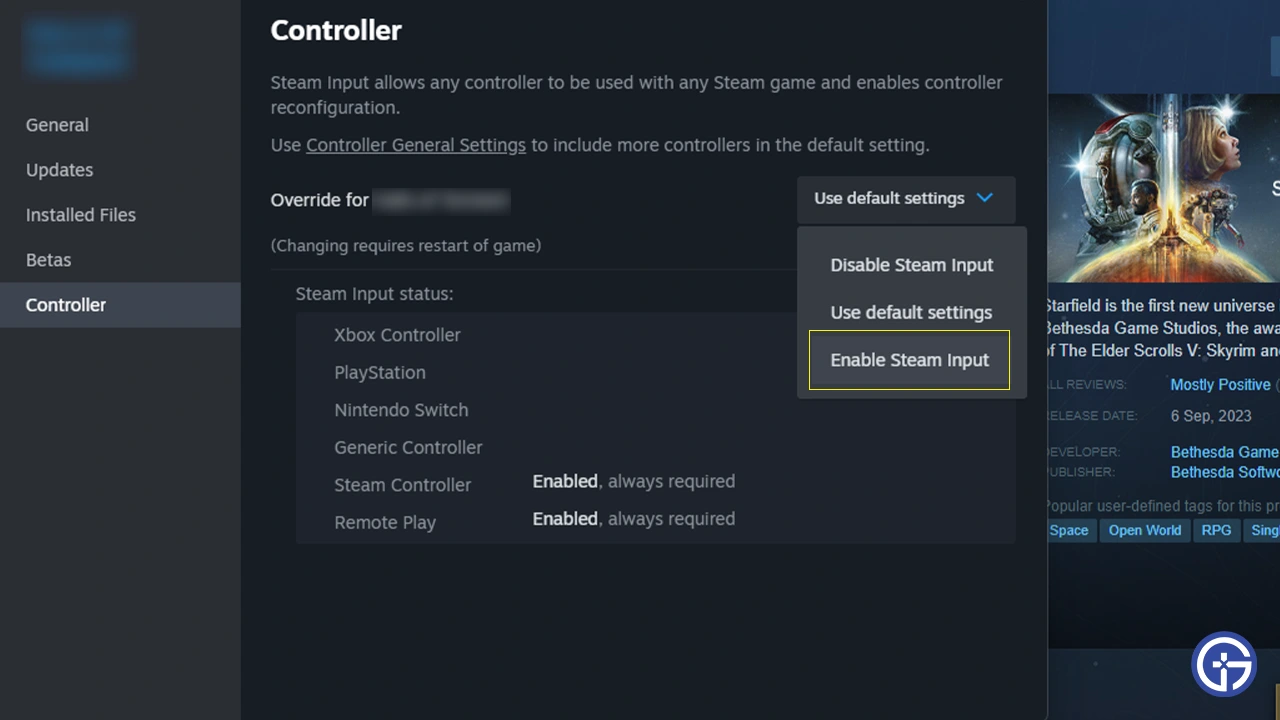
As it worked out for many players including me, enabling the Steam Input might resolve this issue.
- Head to the Steam launcher > Library > Right-click on Starfield > Properties > Controller.
- Toggle the “Use default settings” option.
- Select the Enable Steam Input option from the drop-down menu.
- Then, launch the game and check if the PS5 controller is working on your PC.
Update the Controller Drivers
You can face this issue if your PS5 controller drivers are outdated. So, ensure that your controller drivers are updated to the latest version on your PC.
- For that, head to the Device Manager by pressing the CTRL + X button.
- Right-click on your PS5 controller and select the Update Drivers option.
- Then, restart your PC and launch Starfield to check if the controller issues persist.
Turn on Controller Hotswap In-game
You might also be encountering PS5 controller issues due to your keyboard controls interfering with the game. So, ensure that the Controller Hotswap setting is enabled.
- Launch Starfield and head to the Settings.
- Head to Controls and scroll down to navigate this setting.
- Turn on the Controller Hotswap and save the settings.
When this setting is enabled, using the controller will toggle off the keyboard controls.
Contact Bethesda Support
However, if the PS5 controller issues persist, we recommend contacting Bethesda Support. As you head there, select the Starfield and the in-game support option. Explain the issue that you are facing and submit a ticket over there. Wait for some time until the Support team reverts you with a suitable solution.
That’s all about how to fix the Starfield PS5 controller not working on PC. If you found this guide helpful, check out our guides to find out whether should you rush to the main story or explore, how to fix the Comms computer in Back to Vectera quest, and explore more Starfield Guides right here on Gamer Tweak.