With Ark Survival Ascended finally made available in its early access for Windows, many players are experiencing issues like crashing, not launching, and black screen while playing. The latest installment in the Ark series has had its fair share of performance-related issues since its release. There are many reasons from optimizations to even server maintenance that can affect the performance of the game. Having said that, these issues can be frustrating as you will come across the constant crashing quite often.
Since Ark Survival Ascended is still in its early access, there are no dedicated fixes available to resolve the constant crashing. However, there are some possible solutions that you can try out to fix the issues including being unable to launch, etc. With that out of the way, if you want to continue your journey across the lands while taming different dinosaurs and primeval creatures, then here are some workarounds you can try out.
Fix Crashing, Not Launching, Or Black Screen in Ark Survival Ascended
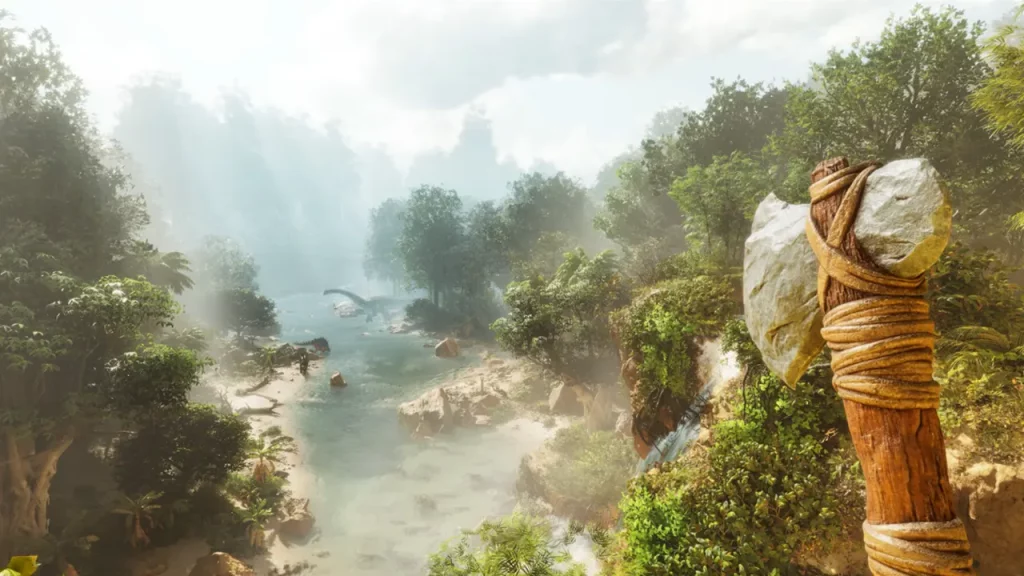
Since Ark Survival Ascended has been completely reimagined and recreated with Unreal Engine 5, it can be quite demanding on the graphic and performance end. We would recommend you first check for all system requirements required to install the game on your Windows device. With that being said, here are the workarounds you can try to resolve the issue:
Restart the Game
As the game is still in its early access it can get temporarily bugged out sometimes. Players can simply fix the bug by closing and relaunching Ark Survival Ascended once again. This will help you resolve any temporary bugs and the game will be running again in no time.
Update Graphics Driver
As mentioned before, the game is quite demanding on the graphics end and you will need to have the latest versions of the graphic driver installed to run it smoothly. Outdated drivers can cause several crashing related issues like black screen and unable to launch in the game. Here are the steps you can follow to update the graphics driver:
- Search for Device Manager on Windows search.
- After which select the drop-down arrow in front of Display Adapters.
- Double-click on your GPU and head over to the Drivers tab.
- Here, you will come across the option to update the driver.
You can also lower the graphics in your settings to get a better performance result while playing the game.
Verify the Integrity of Game Files
Corrupted game files can be one of the reasons why Ark Survival Ascended keeps crashing on your device, making it unable to launch. Players will have to check for the corrupted files and remove them from the game’s directory to run the game smoothly. Here are the steps you can follow to verify the integrity of game files:
- Launch Steam and head over to the library
- Right Click on Ark Survival Ascended from your library
- Select the Properties option and head over to the Installed Files tab
- Here, you will find the Verify the Integrity of Game Files option
- Simply, click on it and it will scan for any corrupted files from the directory and replace them with the latest versions
Check Server Status
Sometimes ongoing server outages or maintenance can cause crashing in Ark Survival Ascended and you will have to check the server status accordingly. Players can keep a tab on all the updates on the official Twitter Page of Ark Survival Ascended. There is no dedicated downdetector page available for the game.
If none of the above workarounds fix the issue, you can always simply uninstall and reinstall Ark Survival Ascended on your device. You will have to keep an eye on all the further updates for the game.
That’s everything covered on how to fix crashing in Ark Survival Ascended. If you find this guide helpful, check out our dedicated Ark Survival Ascended section, right here on Gamer Tweak.