The “An Error Occurred when starting” is an error that has been plaguing Roblox players for quite some time, and in this article, we will show you how to fix it.
How to fix the An error that occurred when starting the error?
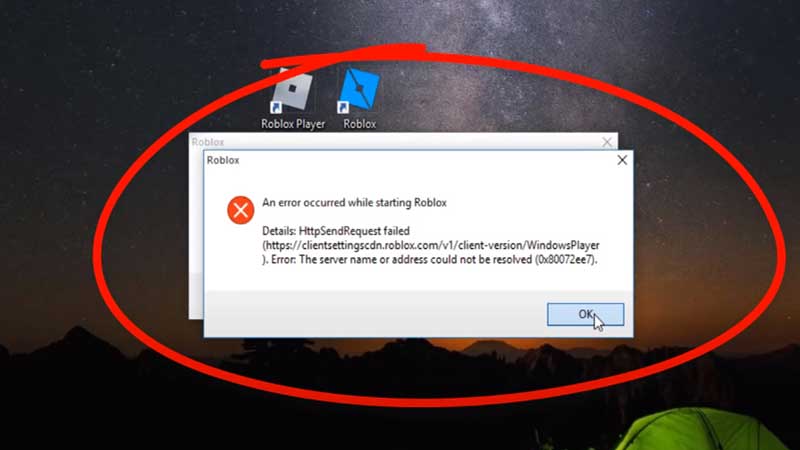
This error usually occurs due to internet issues or due to a lack of antivirus permission. Follow the different methods below to see how you can solve this error in Roblox:
Wi-Fi Router Reset – Fix 1
- The easiest and most accessible method to try and solve the “An Error Occurred when starting” error is to reset your router.
- To do so, press the reset button on your router. This button is usually located on the side or rear of the router.
- If this method does not fix the error, keep reading to find the other methods.
TCP-IP Reset – Fix 2
If a router reset fails to solve the Roblox error, you can try to reset your IP/TCP. Doing so may help, as a possible cause of the error could be a corrupted IP.
- To reset your TCP/IP, press the Windows + R keys. This will open the Run Box in Windows.
- Now, type cmd in the text box and press Enter.
- You will now receive a command prompt. Type the following (without the quotation marks) into the prompt: “netsh int ip reset c: \resetlog.txt”.
- Once you enter this code, press Enter.
- Restart your computer once you complete this process.
Launch Roblox. If the error still has not been rectified, continue reading the rest of the other methods.
Try to Disable the Proxy Settings – Fix 3
If you are using a proxy server for some reason, it may affect your internet connection. This might cause Roblox to not launch properly. You can check if the proxy settings are affecting your game by verifying the LAN Proxy Settings.
- Press the Windows + R keys to open it.
- Type “inetcpl.cpl” (without the quotation marks) and then press the Enter button.
- Now, click on the Connections option. Once you do so, click on LAN Settings.
- If the “Use a proxy server for your LAN” option is checked, uncheck it. Now click the OK button.
- After you complete this process, relaunch Roblox.
If the error still hasn’t been solved, check out the other methods.
Try to Disable the Antivirus
You may have antivirus software installed on your computer to keep you safe from viruses and malware. However, there may be instances where the antivirus mistakenly views an application as a threat and blocks it. This will result in the internet access being cut off from the application in question. (In this case, most probably Roblox)
- To disable the antivirus, simply right-click on the software icon and select the option to either disable or exit the antivirus program.
- Now, launch Roblox and check to see if the issue has been solved.
As a measure of further troubleshooting, you might also need to disable the Windows Firewall temporarily. - Open the Windows Run box and type “control firewall.cpl” (without the quotations) and click OK.
Now, select the Turn Windows Defender Firewall on or off option. - Then, click on the Turn off Windows Defender Firewall for both Private as well as Public Networks. Now click OK.
If this method does not work too, check the next method.
Uninstall & Install Roblox
You can use this method as a last-ditch resort to get rid of the “An Error Occurred when starting” error.
- Head to the Start menu in the lower left of your screen. Here, type programs and features.
- Now, click on the Add or remove programs.
- After selecting this option, keep scrolling until you find the Roblox application.
- Once you find it, click on it and then select the Uninstall option.
- You can remove all the Roblox folders once the game has been uninstalled.
- Now, try to install the game again and then run it.
This method should hopefully solve the “An Error Occurred when starting” error.
These were all of the methods you can use to solve the frustrating “An Error Occurred when starting” error in Roblox. We hope these steps will help you open Roblox successfully without any issues. If you liked this article, check out all the Roblox Game Codes.