Home > Roblox Guides > How To Turn On Bubble Chat In Roblox

How To Enable Bubble Chat In Roblox Studio

Updated Date :

Looking for ways to enable Bubble Chat in Roblox? If yes, then don’t worry we have got you covered. Roblox Studio allows you to enable speech bubbles over a character’s head so that players can communicate with each other with ease. This makes your experience more immersive and a lot more interactive than having a big chat window on your screen. Customizing your game with such features, you can make the gameplay more unique and stick out from all the experiences out there. So if you are wondering how to customize the chat appearance but are finding it tricky to do so, check out this guide further to know more about it.

How to Enable Bubble Chat in Roblox Studio
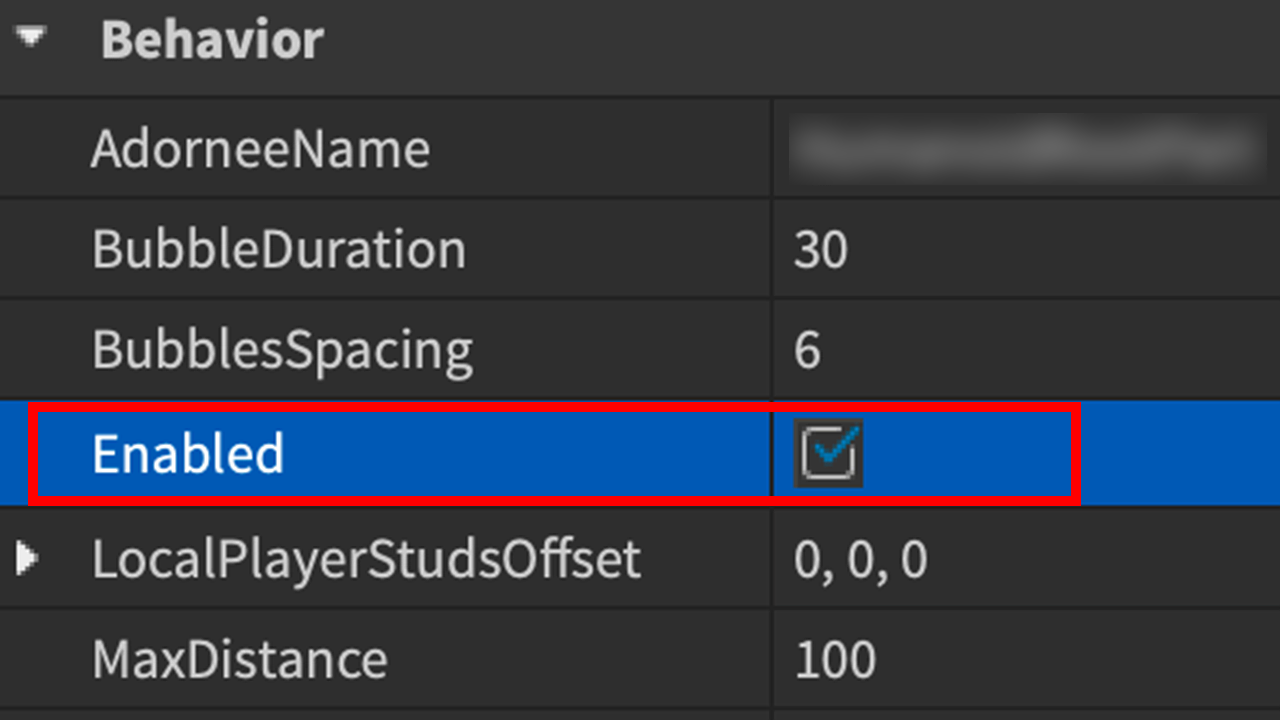
customize bubble chat in roblox studio

For users who want to enable Bubble Chat over the player’s avatar in the game, here are the steps you can follow to do so in Roblox Studio and customize it further according to you:

  • Launch Roblox Studio on your device.
  • Head towards the My Games tab.
  • Select the game you want to add the option.
  • Open the game and let it load.
  • Once done, select the play option from the upper bar.
  • After which head toward the Explorer Window.
  • Click on the drop-down arrow next to TextChatService.
  • Here, select the BubbleChatConfiguration option.
  • Enable the Properties option from the upper bar.
  • In the window, check the box beside Enabled.
  • Check out the feature in the game once you enable it.

You can also customize the bubble chat according to you in Roblox Studio. There are different options for you to choose from, from background color to the distance between the avatar and the text.

That’s everything covered on how to enable bubble chat in Roblox Studio. For more guides like these check out the dedicated Roblox section, right here on Gamer Tweak.
  • A Guide to CS2 Trading Tools and Pro Trading Tips

    A Guide to CS2 Trading Tools and Pro Trading Tips

    Published Date :

    Successful CS2 trading is rarely based on guesswork. Experienced traders rely on data to compare prices, track market trends, and identify good opportunities before making a trade. With so much information available, keeping up with the market without the right tools can be difficult. That’s where CS2 trading tools come in. In this guide, we’ll… Read More

  • Dog Race Codes (July 2026)

    Dog Race Codes (July 2026)

    Published Date :

    For those who enjoy fast-paced clicker and racing simulators on Roblox, Dog Race gives you quite a fun experience! Training your strength, hatching cute pets to boost your stats, and collecting wins to climb into the top 50 leaderboard takes plenty of effort and to help you rack up trophies much faster, redeeming free potion… Read More

  • Knife Duels Codes (July 2026)

    Knife Duels Codes (July 2026)

    Published Date :

    Knife Duels provides a refreshing spin on the FPS genre by putting pure melee combat front and center. You can step onto duel pads to challenge other players in 1v1 through 4v4 matches, battling it out to see who can score six wins first. Outplaying opponents on the leaderboard requires sharp reactions, but if you… Read More

  • My Greenhouse Codes (July 2026)

    My Greenhouse Codes (July 2026)

    Published Date :

    If you’re looking for a cozy alternative to standard Roblox farming simulators, My Greenhouse is a relaxed take on the genre. Built by a solo student developer, this game combines classic plant-and-sell farming mechanics with tycoon building, foraging mini-games, character customization, and more. Exploring different regions, unlocking hidden NPCs, and decorating your greenhouse takes extra… Read More