If you’re facing the ‘Checking Patch File Difference’ error in Once Human, there are a few troubleshooting steps that can help resolve it. While players have shared that one of these methods worked out for them, if that isn’t the case for you, be sure to contact support and they will guide you with some advanced steps. But before that, try the solutions mentioned below.
Why does the Checking Patch File Difference error come up?
The “Checking Patch File Difference” error in Once Human occurs when the game launcher encounters a problem verifying the integrity of the game files. This can happen because some files are corrupted, missing or if there’s an issue with the Steam launcher.
- Corrupted Patch Files: Sometimes, patch files downloaded for updates can become corrupted during download or due to disk errors.
- Missing Patch Files: Some patch files might be missing from your game directory, preventing the launcher from verifying them correctly.
- Launcher Issues: In rare cases, the game launcher itself might have a bug causing it to misinterpret patch files. When this happens, the launcher gets stuck at the “checking patch file difference” stage, preventing the game from launching. It typically shows a progress bar stuck at 0% and won’t proceed further.
Also Read | Once Human Network Disconnected Error fix
How to Fix Checking Patch File Difference in Once Human
The first and safest thing to do in this case is to verify the game files on Steam.
Verify Game File Integrity of Once Human
When you do this, the launcher checks for corrupted or missing files and automatically downloads them again. Here’s how to do it on Steam:
- Open Steam and go to your Library.
- Right-click on Once Human and select Properties.
- Click on the Installed Files tab.
- Click on Verify Integrity of Game Files.
- Steam will verify the files and download any missing or corrupted ones. This is the safest and often the most effective solution.
Delete Patch Files (With Caution)
This method involves deleting temporary patch files, forcing the game to redownload them. However, it’s slightly riskier, so only try it if the first method fails.
- Go to Steam > Right click on Once Human in the library and click on Properties.
- Here, click on Installed Files and click on Browser next to size of installation.
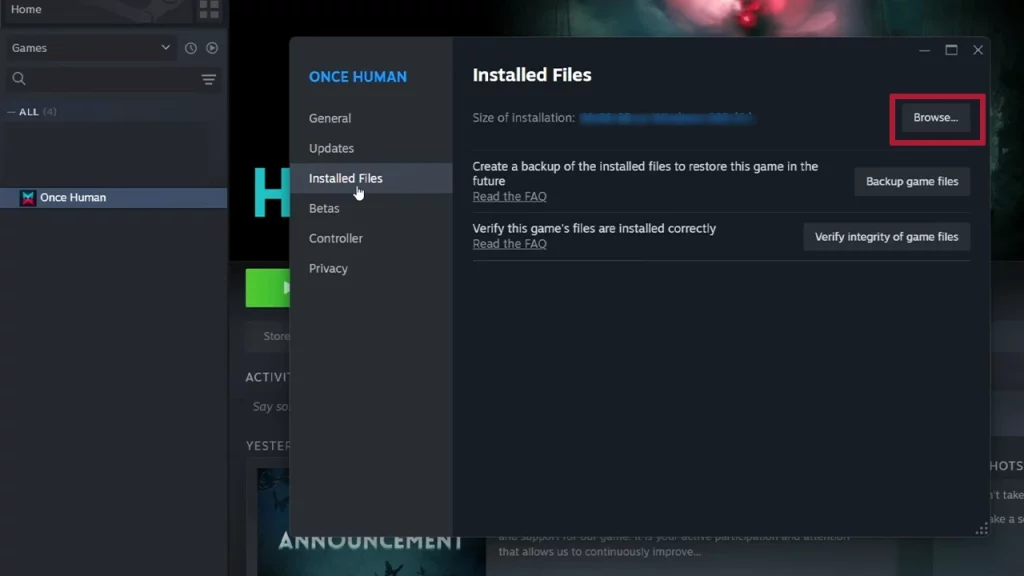
- This will open up a window. In the search bar of the folder window, type patch.
- Select all files with “patch” in their name – there might be multiple.
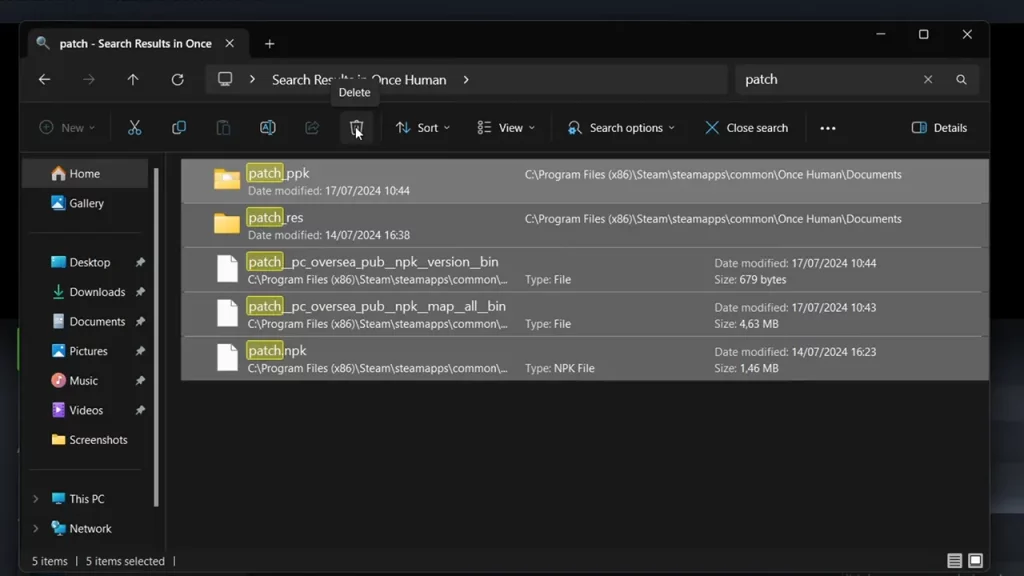
- Delete the selected files (make sure you’re confident about deleting them). If you’re sure, delete them from the trash as well.
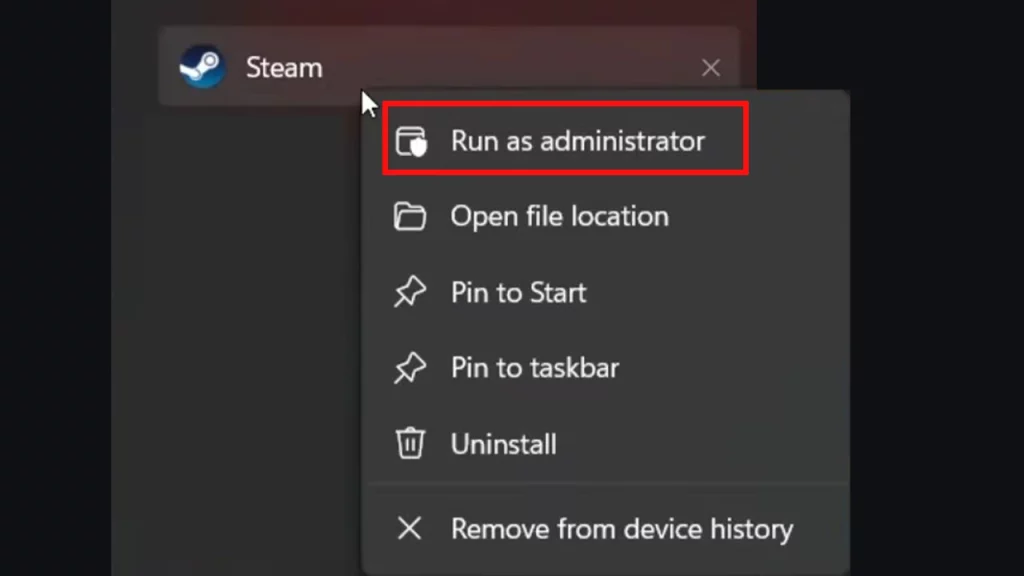
- Close Steam completely, even from the Taskbar.
- Restart Steam by running as administrator and launch Once Human. The game should now redownload the patches and hopefully launch normally.
Deleting game files might take some time to re-download. Make sure you back up your save files before attempting this method.
Related | How to Fix the Network Error in Once Human
Other Troubleshooting Tips:
- Restart your computer: Sometimes a simple restart can resolve temporary glitches.
- Check your internet connection: Ensure you have a stable internet connection.
- Check for updates: Make sure your graphics drivers, operating system and the game version are up to date. This prevents any compatibility issues and
- Search the official communities: The best way to know if other players are also experiencing the same error (and if they have some workarounds), is to join the Steam Community, Discord and Reddit.
With these troubleshooting tips, you should be able to fix the “checking patch file difference” issue in Once Human and get back to playing the game as usual. To contact support, head over to the Feedback tab on the official Discord and you will find the customer service channel with instructions right there.