One of the earliest issues that players face after a game’s launch is the unfortunate crashing problem. There are a few things you need to check if this is happening to you in AoE 4. Don’t worry, I will walk you through every step in this guide on how to fix Age Of Empires (AoE) 4 Crashing on PC. One or the other tip from the list below will surely help you resolve the issue.
How to Fix Age Of Empires 4 (AoE 4) Crashing on PC at Startup or Launch
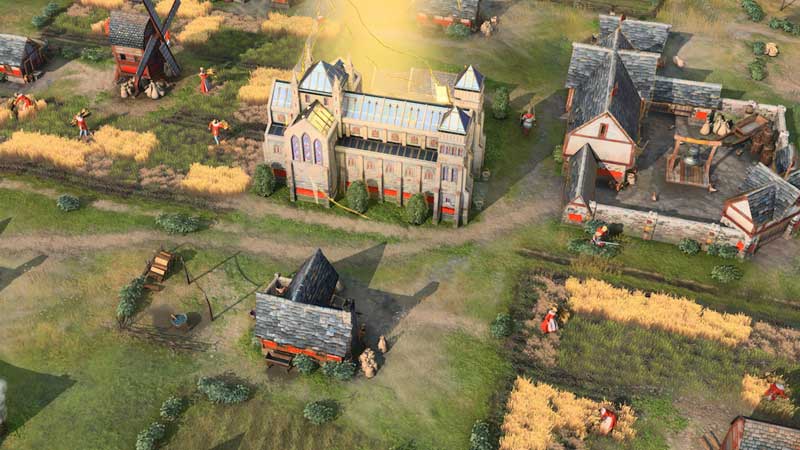
Here are the potential fixes/workarounds to resolve the AoE 4 crashing issues.
Check if your drivers are up-to-date
In case you are using outdated drivers, it can affect the launch of Age of Empires 4. Ensure that you have the latest versions by downloading them from the official sites of the manufacturers. Based on your requirement of Nvidia, AMD or Intel drivers, you can visit the relevant websites and install the display drivers.
Find out if your System supports the Minimum Requirements
Here are the minimum system requirements that are crucial to make the game run smoothly.
MINIMUM:
- Requires a 64-bit processor and operating system
- OS: Windows 10 64bit | Windows 11 64bit
- Processor: Intel Core i5-6300U or AMD Ryzen 5 2400G | CPU with AVX support required
- Memory: 8 GB RAM
- Graphics: Intel HD 520 or AMD Radeon RX Vega 11
- DirectX: Version 12
- Storage: 50 GB available space
If you are not using Windows 10 or if your processor/memory is not compatible, then the game will crash frequently at startup. Update your OS to Windows 10 or higher as soon as possible.
Close any Background Applications
Check if there are any third-party applications or programs that are running in the background simultaneously. These could considerably slow down and make your game lag leading to eventual crashing.
Restart your System
Sometimes, a fresh restart will do the trick and flush out any problems. So, make sure to shut down your PC, restart it and relaunch AoE 4.
Check if your Antivirus or Firewall is Blocking the Game
Sometimes, the antivirus or firewall may restrict access to the game due to some settings. Ensure that you whitelist AoE IV on Avast, AVG or any other antivirus software because if not, they may conflict with the launch of the game.
Update Microsoft Visual C++ Redistributables
Download the latest files from here and restart your PC. This should potentially fix the Age Of Empires 4 Crashing issue.
Verify Game File Integrity on Steam
This is one of the fixes that will resolve issues related to corrupted installation files. Here’s how to do it.
- Do a fresh restart of your PC.
- Launch the Steam client.
- Find the game in your library.
- Right-click on it.
- Click on Properties.
- Click on Local Files.
- Then click on Verify Integrity of Game Files.
- Let the verification process happen which could take a few minutes.
- After this, close Steam and relaunch it.
- Remember that you need to do this for only one game at a time. Also, avoid doing this when there are other resource-hogging softwares or background applications running.
- Once done, launch the game again and check if it’s still crashing.
Run the game from its .exe file
Instead of launching the game via the Steam client, you can directly run it by following these steps:
- Open Steam.
- Find the game in the library.
- Right-click on it and click on Properties.
- Click on Local Files > Browse Local Files.
- Double click on the AoE4 exe file.
- Check if the error persists.
Move AoE IV to a different drive
Sometimes, moving the game to another drive where there’s more space can fix the crashing issue. Try to move the game to a new drive with quite a bit of space so that you game can launch and run smoothly.
Download the Latest Patch
If there’s a patch that fixes crashes encountered by players, ensure that you download and install it at the earliest.
Uninstall the Game
As a last resort, uninstall the game and reinstall it to see if it’s still crashing or the problem is fixed.